 English
 Spanish
 French
 German
 Italian
 Amharic
 Afrikaans
 Arabic
 Chinese
 Japanese
 Korean
 Turkish
 Finnish
 Bengali
 Czech
Czech
 Indonesian
 Danish
 Greek
Greek
 Hindi
Hindi
 Armenian
 Malay
Malay
 Dutch
Dutch
 Norwegian
 Polish
 Portuguese
 Romanian
 Russian
 Swedish
 Thai
Thai
 Vietnamese
 Ukrainian
How to Compress PDF File Size without Losing Quality in 2026
PDF is a globally used file format, but large PDF files create delays during uploads and frustrate users across many common digital tasks. People rely on quick file access for work, communication, education, and personal record storage.
Modern workflows demand efficiency and reliability during frequent document exchanges. Traditional tools like email systems often reject oversized attachments, which interrupts sharing important documents with others. Cloud platforms consume more time and data when users upload heavy PDF files.
Fast sharing strengthens productivity and improves experiences across professional and personal contexts. Compressed PDFs improve speed and support collaboration across teams and devices. Smaller files reduce storage costs and help maintain organized digital workflows.
However, it is not that simple to reduce PDF size without the help of reliable tools. There are always privacy risks, and the outcome may be unwanted as well. The following is a detailed guide on how to compress PDF efficiently.
How PDF Compression Works
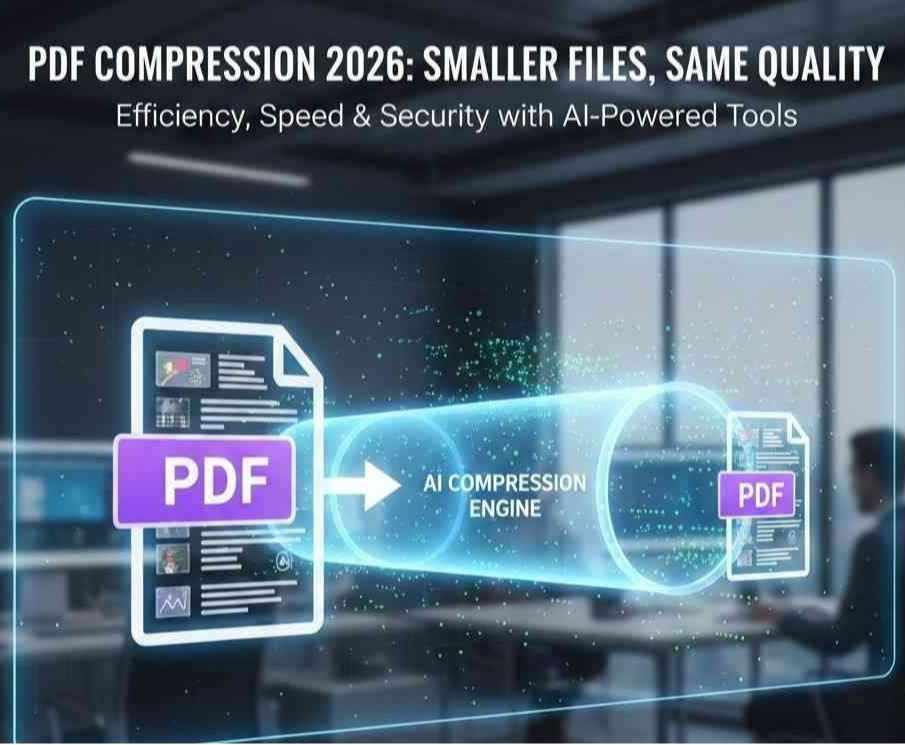
PDF compression starts when AI identifies repeated data that increases the file size. Fonts, colors, and layouts often appear many times inside a single document. AI removes these duplicates and preserves the visual structure intact. This process reduces unnecessary information without harming readability or meaning significantly.
Image optimization focuses on lower resolution when high detail offers no benefit. AI analyzes images and adjusts quality based on screen and print needs. The system preserves clarity and lowers the amount of image data stored inside the file. Optimized images load faster and maintain an acceptable appearance across different devices.
Content re-encoding changes how text graphics and elements store information digitally. AI selects efficient encoding methods that compress data without visible quality loss. Text compression reduces character data size and keeps fonts readable and accurate. Re-encoded PDFs balance smaller file sizes with consistent viewing experiences.
Step-by-Step: Compress a PDF
Here is the step-by-step process of how to compress PDF online.
1. Upload PDF
The process begins when users upload the PDF file from their device. Online tools accept files quickly and display upload progress clearly onscreen.
2. Choose compression level
Users then select a compression level based on quality and size needs. Higher compression reduces file size more, while lower compression preserves visual detail.
3. Download smaller file
The system processes the file and creates a smaller optimized PDF. Users download the compressed file and share it easily across platforms. Fast downloads support efficient workflows across work and personal document management.
Best PDF Compression Tools
Look for highly reliable PDF compression tools? Here are a few.
1. Adobe Acrobat
Adobe Acrobat offers a complete PDF management platform that includes powerful compression features. Users upload their files, then choose levels that balance quality and file size in clear menus. The tool works inside popular browsers and also in desktop applications for more control. People can compress documents and then use editing and signing tools without switching software.
Pros
- Offers strong compression with solid text readability.
- Lets users pick quality and size settings easily
- Integrates with other Adobe PDF features in one platform
Cons
- Requires a paid subscription for full compression features
- May feel complex for users with simple needs only
- Batch compression needs higher subscription plans
2. iLovePDF
iLovePDF provides a web-based PDF toolkit that includes a fast and easy compressor. Users upload a file and select a compression strength before saving the smaller file. This tool works with Google Drive and Dropbox cloud storage, with simple cloud login options. Visitors can also merge, split, or convert files with the same interface.
Pros
- Free compression with basic settings for common users
- Works with cloud storage platforms you already use
- Includes many additional PDF tools in one place
Cons
- The free version shows ads and limits daily usage amounts
- Some advanced options require a paid subscription
- Compression can vary based on file content complexity
3. Smallpdf
Smallpdf delivers an easy online PDF compression tool with fast processing speeds. People upload files, then pick a quality level depending on their sharing or printing needs. This tool also supports conversion and editing tasks within the same online hub to save time. Users can drag files from computers or cloud accounts in a few clicks.
Pros
- Simple interface that works well across devices and browsers
- Lets users compress and convert files in one place
- Offers secure file handling and quick results
Cons
- Daily free actions remain limited without a subscription
- Premium subscription costs may feel high compared with simple tools
- Some large files take longer to compress than expected
Here is a brief comparison between these tools.
| Tool Name | Ease of Use | Free Version | Custom Settings | Best For |
|---|---|---|---|---|
| Adobe Acrobat | Medium | Limited | Yes | Professional and enterprise use |
| iLovePDF | Easy | Yes | Some | Frequent small tasks online |
| Smallpdf | Easy | Yes | Yes | Balanced online compression |
Quality vs File Size
PDF compression requires a careful balance between visual clarity and a manageable file size. Excessive reduction harms images, text, and charts, which lowers document usability. Poor quality files frustrate readers and reduce trust in shared information.
Smart compression tools analyze content and preserve important details during size reduction. Users select compression levels that match viewing needs across screens, print, or storage. Balanced files load faster and maintain readability across professional and personal use.
Conclusion
PDF compression matters greatly in 2026 as digital work depends on speed, efficiency, and reliable document access. Large files slow communication, increase storage costs, and disrupt modern workflows across professional and personal environments.
Modern compression tools use intelligent methods that reduce size while preserving clarity, readability, and consistent visual structure. Careful tool selection protects privacy, ensures quality results, and avoids unwanted changes during file size reduction.
Trusted platforms like Adobe Acrobat, iLovePDF, and Smallpdf offer flexible options suited for different user needs. Balanced compression choices support faster sharing, lower costs, and stronger collaboration across devices, teams, and everyday tasks.
FAQs
Does compression reduce quality?
PDF compression may reduce quality when users select very high compression levels. Smart tools preserve text clarity and important visual details during size reduction. Balanced settings maintain readability and acceptable appearance for most documents shared digitally.
Can I compress PDFs for free?
Many online PDF tools offer free compression with basic size reduction options. Free plans often limit daily usage or file size for regular users. Occasional compression tasks work well without paid subscriptions or advanced features.
Is compressed PDF printable?
Compressed PDF files remain printable when compression settings preserve resolution properly. Text and images usually print clearly when users avoid extreme size reduction. Professional tools support printing needs across documents, reports, and forms.
How much size can be reduced?
PDF compression typically reduces file size between 30%-70% on average. Text-heavy documents shrink more than image-focused files. Actual reduction depends on the content type, images, and the selected compression level.
Is compression safe online?
Reputable PDF tools protect files through secure connections and automatic deletion policies. Trusted platforms reduce privacy risks and prevent unauthorized file access. Users should avoid unknown websites and review privacy statements before uploading documents.