 English
 Spanish
 French
 German
 Italian
 Amharic
 Afrikaans
 Arabic
 Chinese
 Japanese
 Korean
 Turkish
 Finnish
 Bengali
 Czech
Czech
 Indonesian
 Danish
 Greek
Greek
 Hindi
Hindi
 Armenian
 Malay
Malay
 Dutch
Dutch
 Norwegian
 Polish
 Portuguese
 Romanian
 Russian
 Swedish
 Thai
Thai
 Vietnamese
 Ukrainian
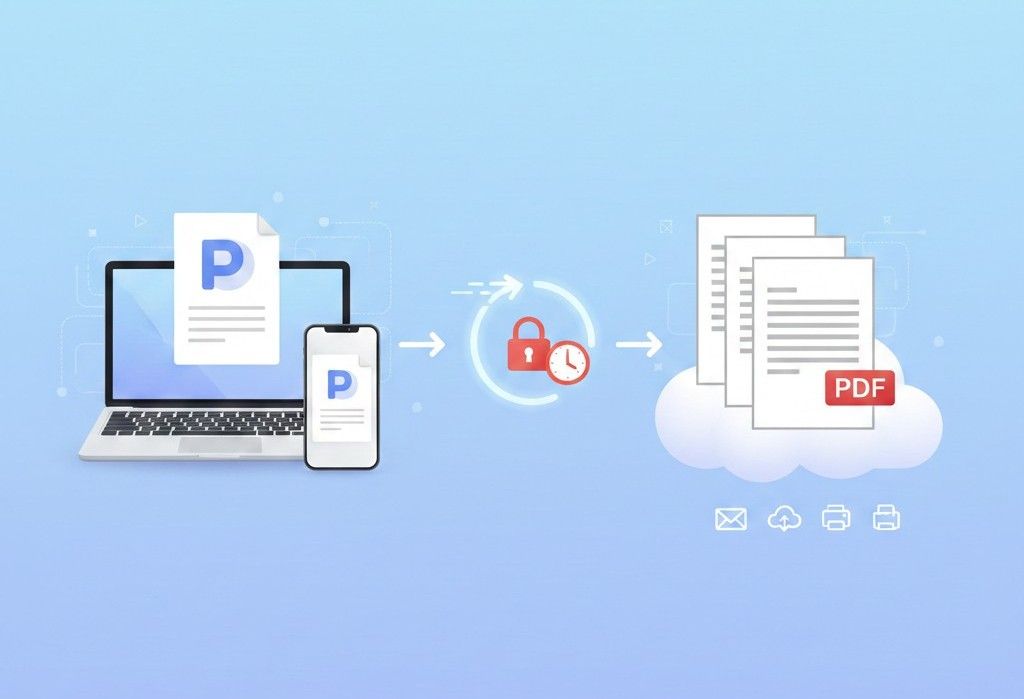
Pages to PDF: Convert Apple Pages Files to PDF Quickly and Securely Online
Why Pages to PDF Conversion Is Important
Apple Pages is a popular word processing application used by macOS and iOS users to create documents such as reports, resumes, proposals, and assignments. While Pages works well within the Apple ecosystem, sharing Pages files outside of it often creates compatibility issues.
Many users face problems when sending Pages files to Windows users, uploading documents to websites, or submitting files to institutions that only accept PDF format. This is where Pages to PDF conversion becomes essential.
Converting Pages files to PDF ensures consistent formatting, universal compatibility, and professional presentation across all devices and platforms.
What Is Pages to PDF Conversion
Pages to PDF conversion is the process of transforming an Apple Pages document into a Portable Document Format file.
PDF format is widely accepted because it:
- Preserves layout and formatting
- Opens on any device or operating system
- Prevents accidental editing
- Looks the same everywhere
Once converted, the document becomes easier to share, print, upload, and archive.
Why PDF Is the Preferred Format for Sharing Documents
PDF has become the standard format for finalized documents. Unlike editable files, PDFs lock the design and structure of a document.
Key benefits include:
- Universal compatibility
- Fixed fonts and spacing
- Reliable printing
- Professional appearance
- Easy file sharing
For Pages users, converting to PDF removes dependency on Apple software.
Common Problems With Sharing Pages Files
Before conversion, Pages users often experience issues such as:
- Recipients cannot open the file
- Layout changes on non-Apple devices
- Fonts not displaying correctly
- Upload errors on job portals or academic platforms
These problems are eliminated by converting Pages files into PDF format.
How Pages to PDF Conversion Works Online
Online Pages to PDF tools simplify the conversion process without requiring software installation.
The general process includes:
- Uploading the Pages file
- Processing the document securely
- Generating a downloadable PDF
- Preserving original layout and content
Online conversion saves time and works directly from a browser.
Convert Apple Pages Files to PDF Quickly and Securely
You can convert Pages files to PDF using this dedicated online tool:
This tool allows users to convert Apple Pages documents into high-quality PDFs without registration or software downloads.
Advantages of Using an Online Pages to PDF Converter
1. No Software Installation
Online tools work directly in your browser. There is no need to install Pages on another device or export manually.
2. Cross-Platform Compatibility
You can convert Pages files on macOS, iOS, Windows, or mobile devices.
3. Secure File Processing
Files are processed securely and removed automatically after conversion.
4. Formatting Preservation
Fonts, spacing, images, and layout remain intact after conversion.
5. Fast Results
Conversion usually takes only a few seconds.
Who Needs Pages to PDF Conversion
Students
Students often create assignments in Pages but must submit PDFs. Converting ensures compatibility with school portals and avoids formatting issues.
Professionals
Resumes, reports, and proposals created in Pages look more professional when shared as PDFs.
Freelancers
Clients may not use Apple devices. PDF ensures documents open correctly for everyone.
Businesses
Contracts, invoices, and internal documents require consistency and security that PDFs provide.
Pages to PDF vs Sharing Pages Files Directly
| Feature | Pages File | PDF File |
|---|---|---|
| Compatibility | Limited | Universal |
| Formatting | Can change | Fixed |
| Editing control | Editable | Read-only |
| Professional use | Limited | Preferred |
| Printing | Unpredictable | Reliable |
PDF is the safer and more professional option.
Best Practices Before Converting Pages to PDF
To ensure the best result:
- Review spelling and formatting
- Use standard fonts
- Finalize content before conversion
- Remove unnecessary comments
- Check page breaks
These steps help create a clean and polished PDF.
What to Do After Pages to PDF Conversion
Once converted, you can:
- Share the PDF via email
- Upload it to websites or portals
- Print it without layout issues
- Store it for long-term use
You can also further optimize the PDF if needed.
Related PDF Tools for Better Document Workflow
After converting Pages to PDF, you may want to use additional PDF tools.
Compress PDF
Reduce file size for easier sharing.
Merge PDF
Combine multiple PDFs into one document.
PDF to Word
Convert PDFs back to editable format if needed.
These tools help manage documents efficiently.
External Reference on PDF Standards
According to Adobe , PDF is designed to preserve document integrity across platforms and devices:
This is why PDFs are accepted worldwide.
Conclusion: Pages to PDF Makes Document Sharing Simple
Pages to PDF conversion solves one of the most common document sharing problems faced by Apple users. By converting Pages files into PDF format, users gain compatibility, consistency, and confidence that their documents will appear exactly as intended.
Whether you are a student, professional, or business user, converting Pages files to PDF ensures smooth sharing and reliable presentation across all platforms.
Use this trusted Pages to PDF converter to get started:
FAQ
Can I convert Pages to PDF without Apple software
Yes. Online tools allow conversion without installing Pages.
Will my formatting stay the same after conversion
Yes. Layout, fonts, and images are preserved in the PDF.
Is Pages to PDF conversion secure
Yes. Files are processed securely and removed automatically.
Can I convert Pages files on mobile
Yes. Online converters work on phones and tablets.
Is PDF better for sharing than Pages
Yes. PDF is universally supported and more professional.