 English
 Spanish
 French
 German
 Italian
 Amharic
 Afrikaans
 Arabic
 Chinese
 Japanese
 Korean
 Turkish
 Finnish
 Bengali
 Czech
Czech
 Indonesian
 Danish
 Greek
Greek
 Hindi
Hindi
 Armenian
 Malay
Malay
 Dutch
Dutch
 Norwegian
 Polish
 Portuguese
 Romanian
 Russian
 Swedish
 Thai
Thai
 Vietnamese
 Ukrainian
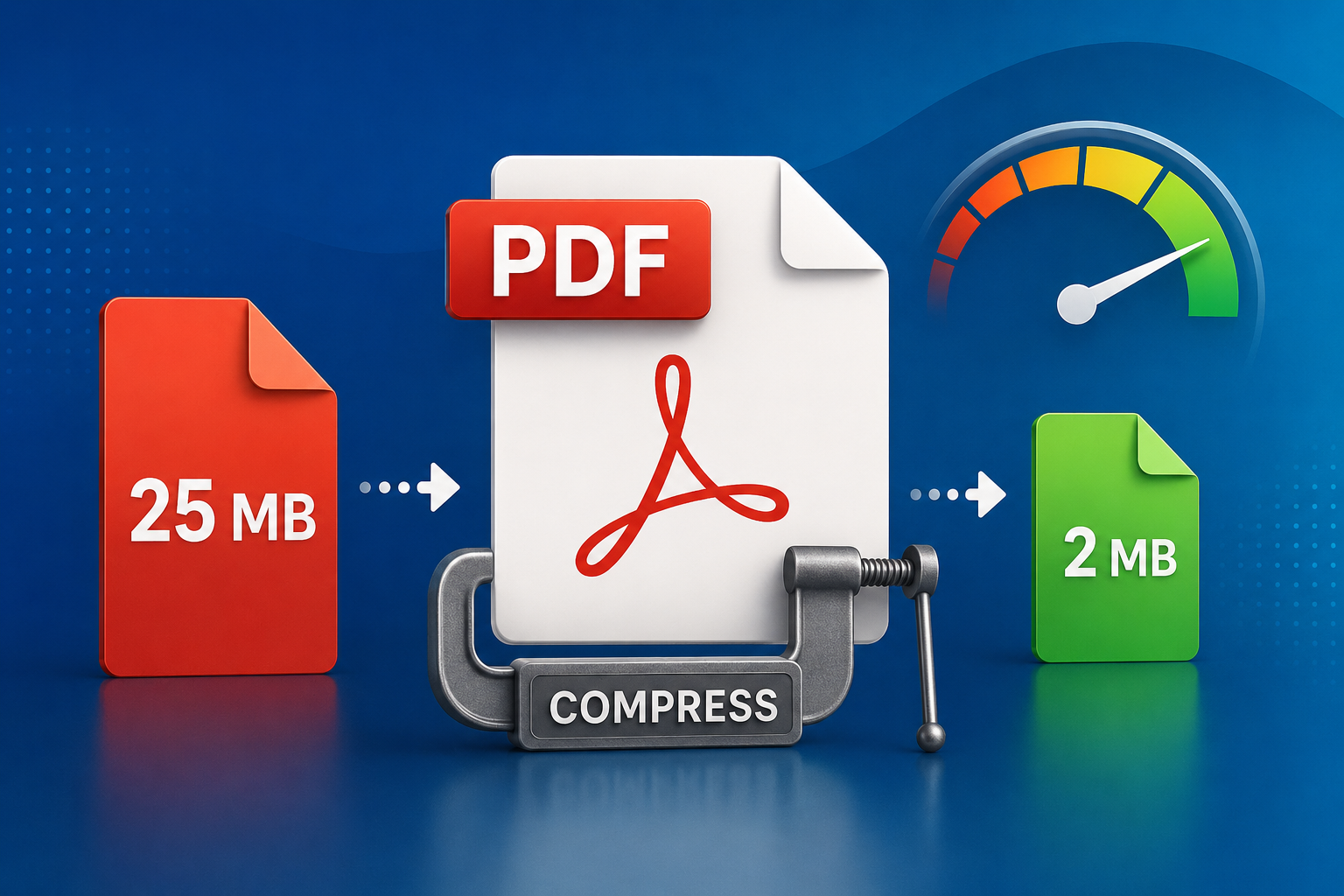
How to Reduce PDF File Size Without Losing Quality: The Complete 2026 Guide
Why Large PDFs Are a Real Problem
Anyone who works with documents regularly has run into this situation at least once. You finish a polished report, save it as a PDF, and then find it is 40 MB. Your email client refuses the attachment. The client portal has a 10 MB limit. The government submission form will not accept anything above 5 MB. You are stuck.
The problem is more common than people expect, and it catches people at the worst possible times. The good news is that large PDFs can almost always be brought down to a manageable size, and in most cases you can do it without any visible quality loss. This guide explains how PDF compression actually works, which approach is right for your document type, and how to use the right tool for each situation.
Whether you are a student trying to submit a thesis, a freelancer sending a design portfolio, or an office worker dealing with scanned contracts, the steps here will solve the problem quickly.
What Makes a PDF Large in the First Place
To compress a PDF effectively, you need to understand what is taking up space inside it. PDFs are container files that bundle together several types of data, and each type contributes to file size differently.
Images are almost always the main culprit
A single high-resolution photograph embedded in a PDF can easily be 5 to 15 MB on its own. This is especially true for PDFs that were created from scanned paper documents, or documents that include product photography, artwork, or detailed diagrams. When you multiply that by many pages, the total size grows fast.
The reason scanned PDFs are particularly large is that scanners default to 300 DPI or higher, which is print quality. For a document that will only ever be read on screen, that level of detail is completely unnecessary. Reducing the image quality to 96 to 150 DPI produces a file that looks identical on any monitor but is a fraction of the original size.
Fonts add more than most people realise
PDFs embed font data to ensure the document looks the same on every device. If a document uses several custom or decorative fonts, each one adds to the file size. A document with five custom fonts can carry several megabytes of font data before a single image is included.
Revision history and hidden data
PDFs that have been edited multiple times using tools like Adobe Acrobat Pro accumulate revision history, deleted objects, and metadata that never gets cleaned up. These orphaned objects remain in the file and add to its size without contributing anything visible. A proper PDF optimiser strips these out as part of the compression process.
Three Types of PDF Compression Explained
Lossless compression
Lossless compression rearranges and re-encodes data more efficiently without removing any of it. The output is mathematically identical to the original. For PDFs that are primarily text with simple graphics, lossless compression can reduce file size by 20 to 40 percent with absolutely no quality change. This is always worth doing first.
Lossy image compression
Lossy compression works by reducing image quality to a level that is still acceptable for the intended use. A 300 DPI photograph gets resampled to 150 DPI or 96 DPI. The image looks slightly less sharp if you zoom in closely, but on a standard monitor at normal reading zoom it is indistinguishable from the original. For most business documents, this is the right trade-off.
The key is to match the output quality to the intended use. A document that will only be read on screen can afford more compression than one that will be professionally printed. Most tools give you a choice of compression level, and the middle option is usually the right starting point.
Structural optimisation
This type of compression cleans up the internal structure of the PDF: removing unused objects, stripping unnecessary metadata, subsetting fonts to include only the characters actually used, and flattening transparency where possible. Structural optimisation typically adds another 5 to 15 percent size reduction on top of image compression.
How to Compress a PDF Using PDFTools
The fastest way to compress a PDF without installing any software is to use the free tool at PDFTools. Here is the step-by-step process.
- Open your browser and go to PDFTools/compress-pdf.
- Click the upload button or drag your PDF directly onto the page. You can also import files from Google Drive or Dropbox if your document is stored there.
- The tool will analyse your document and apply compression automatically. Most files process in under 30 seconds.
- Review the size comparison shown on screen. It will display the original size, the compressed size, and the percentage reduction.
- Click the download button to save your compressed PDF. Your original file on your device is completely unchanged.
The tool requires no account and adds no watermarks. Files are automatically deleted from the server after one hour. If you regularly work with large batches of PDFs, the merge PDF tool lets you combine documents before compressing, which can be more efficient than handling them separately.
What Results to Realistically Expect
Compression results vary significantly depending on what the PDF contains. Here is a realistic guide to what you should see across different document types.
- A scanned multi-page document with photographs, such as a signed contract or a printed report, typically starts at 8 to 15 MB for 10 pages. After compression at medium quality, expect 2 to 5 MB. That is a reduction of around 65 to 75 percent.
- A Word-style report with text and simple graphics usually starts at 1 to 3 MB. Compression brings it down to 400 to 900 KB, a reduction of 50 to 70 percent.
- A PDF brochure with high-quality product photographs might start at 20 to 40 MB. Medium compression should get it to 5 to 12 MB. Maximum compression can bring it to 2 to 4 MB, but images will be noticeably softer.
- A pure text document, such as a research paper with no images, is already compact at 200 to 500 KB. Compression will reduce it by another 10 to 20 percent at most.
When Compression is Not Enough
Sometimes a PDF is simply too large because of what it contains, not because it was created inefficiently. A portfolio of high-resolution artwork, for example, needs those large images to look good. Compressing it aggressively will degrade the work.
In these situations, the right solution is to share the file through a cloud storage link rather than as an email attachment. Upload it to Google Drive or Dropbox, generate a shareable link, and paste that into your email. The recipient downloads directly from the cloud with no size restrictions.
Another option for very large documents is to split them into smaller sections before sending. The PDF splitter at PDFTools lets you extract specific pages, so you can send only the relevant section to each recipient rather than the entire document.
Common Compression Problems and How to Fix Them
The file is still too large after compression
If a 50 MB file only compressed to 45 MB, the images inside are likely already in a compressed format such as JPEG. The PDF compression tool cannot remove data that is already compressed without causing visible quality loss. Try using the maximum compression setting, or consider whether splitting the document into smaller parts is more practical than over-compressing a single file.
Text looks blurry after compression
This happens when the compressor misidentifies text areas as images and applies image compression to them. Use a tool that separates text and image compression, or reduce the compression strength. The recommended setting in PDFTools is calibrated to avoid this problem for most documents.
The compressed file is larger than the original
This occasionally happens when a PDF is already well-optimised. Re-compressing it adds structural overhead without removing content. Start fresh from your original source document rather than re-compressing an already-compressed file.
Conclusion
Reducing PDF file size without losing quality is one of the most practical document skills you can develop. The vast majority of oversized PDFs contain high-resolution images that can be resampled without any visible change on screen, and the process takes under two minutes using a free tool.
Start with the compression tool at PDFTools for quick results without any software installation. For more complex situations, the principles in this guide will help you understand why a particular PDF is large and which approach will reduce it most effectively. The key habit is to always compress from the original source file rather than from a previously compressed version, to avoid accumulating quality loss over time.
For related tasks, see the guide on sending large PDF files by email and the PDF splitter tool for breaking large documents into manageable sections.
Frequently Asked Questions
How much can I reduce a PDF file size without losing quality?
For image-heavy PDFs, lossless compression achieves 20 to 40 percent reduction with no quality change. Lossy compression at medium settings typically achieves 60 to 75 percent reduction with quality that is indistinguishable on screen. A 10 MB PDF can usually be brought down to 2 to 3 MB without any visible difference on a standard monitor.
Is it safe to compress a PDF using an online tool?
Yes, when using a reputable service. PDFTools uses encrypted file transfer and automatically deletes all uploaded files after one hour. Files are not shared with third parties or used for any purpose beyond the requested operation. For documents that contain highly confidential information, desktop software that keeps files entirely local is an alternative worth considering.
Does compressing a PDF affect its searchability?
No. Text in a PDF is stored separately from image data and is not touched by image compression. After compression, you can still search the document, copy text, and have the file indexed by search engines. Only image quality is affected by compression.
Can I compress a PDF multiple times?
Yes, but with diminishing returns and increasing quality risk. Each additional compression pass on image data causes further degradation. Always work from the original uncompressed source document, and aim to reach your target file size in a single compression pass.
What is the maximum safe email attachment size?
Gmail and most major email providers accept attachments up to 25 MB. Many corporate email systems have limits as low as 10 MB. For maximum compatibility across all recipients, keeping PDF attachments under 10 MB is a safe target.