 English
 Spanish
 French
 German
 Italian
 Amharic
 Afrikaans
 Arabic
 Chinese
 Japanese
 Korean
 Turkish
 Finnish
 Bengali
 Czech
Czech
 Indonesian
 Danish
 Greek
Greek
 Hindi
Hindi
 Armenian
 Malay
Malay
 Dutch
Dutch
 Norwegian
 Polish
 Portuguese
 Romanian
 Russian
 Swedish
 Thai
Thai
 Vietnamese
 Ukrainian
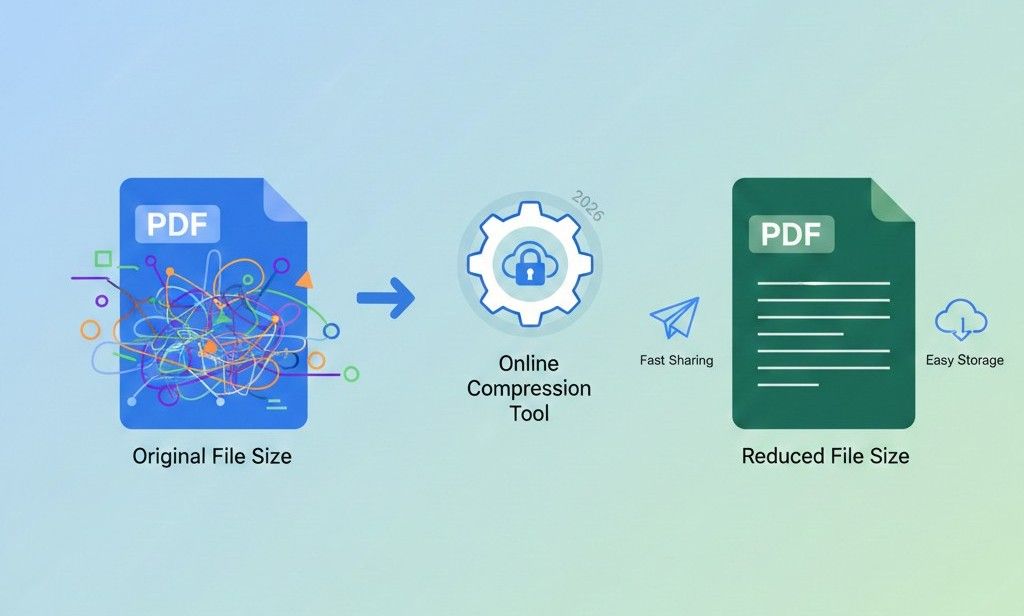
Best Online PDF Compression Tools to Reduce File Size in 2026
PDF compression helps reduce file size and improves storage efficiency across many devices. Smaller PDF files speed email sharing and support quick uploads on slow networks. Compressed documents also maintain readable quality and lower transfer limits and storage costs.
Online PDF compression tools attract users because browser tools don't require installing software. Users prefer browser-based tools without downloads since access works instantly on shared computers. Web services support many platforms and simplify work across phones, tablets, and desktops.
Online compressors save time during busy tasks and reduce steps during document preparation. Many users value simple interfaces, clear results, and predictable file sizes after compression. Trusted websites offer quick processing and respect privacy without account creation today.
The following is a detailed guide on how to reduce PDF size online with reliable tools. The guide also shares important compression tips, so stay tuned.
How Online PDF Compression Works
Online PDF compression begins when users upload a document through a secure website interface. The system scans the file structure and identifies images, fonts, and objects inside pages. Smart algorithms analyze content importance and decide suitable compression levels automatically.
Image optimization reduces resolution slightly and keeps text and visuals clear. AI removes unused objects, duplicate data, and hidden elements from the file. Fonts receive compression through efficient encoding that preserves reading quality well. Quality checks compare original content and compressed output to ensure readability and accurate page structure across all devices.
After optimization, the tool rebuilds the PDF with a smaller overall size. Users then download the compressed file quickly without visible loss in layout. Online compression finishes fast and supports sharing storage and smooth document handling.
Step-by-Step: Compress PDF Online
Follow these simple steps to compress PDF online.
Upload PDF
Users start the process by selecting a PDF file from their device storage. The website interface supports quick uploads and works smoothly on most browsers. Clear buttons and simple instructions help users begin without confusion or delay.
Choose Compression Level
The tool offers different compression levels based on size and quality balance. Users select an option that matches their sharing needs or storage limits. Preview details explain expected results and help users decide confidently.
Download Compressed File
The system finishes compression and prepares a smaller PDF file quickly. A download button appears clearly and allows instant file saving. Users can share the compressed PDF easily through email, cloud platforms, or messaging apps.
5 Best Online PDF Compressors
Let's have a look at some top-notch PDF compression tools online.
iLovePDF
This online PDF compressor makes file sizes much smaller without losing readability. Users can upload one or multiple files and then select light, medium, or strong compression. Compression happens right in the web browser, so users do not have to install extra software.
Pros
- Simple drag-and-drop upload interface that beginners can use easily
- Multiple compression levels let users choose a balance between size and quality
- Works in the browser on all main operating systems, such as Windows or macOS
Cons
- Free users may see limits on the number of files per hour
- Strong compression sometimes reduces image sharpness somewhat
- Users must refresh the page if a large file fails to upload
Smallpdf
Smallpdf offers quick PDF compression and displays size reduction results clearly. Users can drag a document into the tool and then choose basic or strong compression. The tool works online and supports mobile phones as well as desktop browsers.
Pros
- Very easy interface that beginners grasp without any instructions
- Strong compression option helps reduce larger files more than the basic mode
- Works in every browser that supports modern internet standards
Cons
- Free accounts face usage limits each day
- Strong compression sometimes lowers image quality noticeably
- Users must sign up for a paid plan to unlock all features
Adobe Online PDF Compress
Adobe's web tool compresses PDF files with a trusted document technology. Users can log in with a free Adobe account and upload a PDF to compress it. The tool displays compression options labeled high, medium, and low.
Pros
- From a reputable company known for PDF technology
- Users choose compression levels for controlled output size
- Works equally well on desktop or smartphone browsers
Cons
- Limited free uses before a paid plan requirement appears
- Users must sign in with an Adobe ID, which takes extra steps
- Pricing for premium features is higher than many alternatives
PDF Filler
PDFFiller provides an online PDF compressor among many other editing tools. Users can upload files and then use the compress option inside the editor. The platform also includes PDF editing, signing, and conversion features.
Pros
- Combines compression with editing and signing tools in one place
- Intuitive interface simplifies document management for users
- Online access means no software installation is required
Cons
- Users often must log in, which slows the process down
- Some features require a paid subscription to save changes
- Compression output may not be as small as dedicated tools
5. PDF24 Tools
PDF24 Tools offers a browser-based PDF compressor tool for smooth PDF compression. Users can drop one or more PDFs and pick a compression level quickly. The site also features many free file tools beyond PDF compression.
Pros
- Supports up to ten PDF files per compression session
- Users choose light, medium, or high compression settings
- Works entirely in the web browser for device privacy
Cons
- Compression options are more basic than some advanced tools
- Interface feels less modern compared with the top commercial services
- Occasional ads may appear that distract from the task
Here is a brief comparison of the tools mentioned above.
| Tool Name | Free Usage | Multiple Files | Quality Options | Login Required |
|---|---|---|---|---|
| iLovePDF | Yes | Yes | Yes | No |
| Smallpdf | Yes (Limits) | Yes | Yes | No |
| Adobe Online | Limited | Yes | Yes | Yes |
| PDF Filler | Yes (Limited) | Yes | Yes | Yes |
| PDF24 Tools | Yes | Yes | Yes | No |
Security Considerations and Compression Tips
The following tips will ensure smooth and secure compressions.
File Compression Security
Online PDF compression requires attention to how tools handle uploaded documents securely. Reliable platforms process files through protected connections and controlled server environments. Users should choose services that explain compression handling and document safety clearly.
Auto Deletion of Uploaded Files
Auto deletion removes compressed files from servers after short retention periods. This feature reduces exposure risks and limits unauthorized access to stored documents. Clear deletion timelines help users trust online compression platforms confidently.
Choose the Right Compression Level
Balanced compression preserves readability while still reducing file size effectively. Medium compression suits image-heavy documents such as scanned reports or brochures. Careful selection prevents unnecessary quality loss during repeated sharing.
Prepare Files before Compression
Removing unused pages lowers the final file size significantly. High-resolution images benefit from resizing before upload to online tools. Clean documents compress more efficiently and deliver consistent results.
Avoid Multiple Compression Cycles
Repeated compression degrades text sharpness and image clarity gradually. Users should keep the original files stored safely before any online processing. Single-step compression maintains quality and ensures reliable document output.
Conclusion
PDF compression reduces file size and improves the sharing and storage speed across devices. Online PDF compression tools attract users because browser tools need no software installation. Popular services offer fast results, simple interfaces, and support many platforms.
Compression tools analyze documents, images, fonts, and unused elements during processing. Image optimization and smart cleanup help maintain quality while reducing overall size. Trusted platforms protect files with encryption and clear auto-deletion policies.
Users gain better results by selecting suitable compression levels before downloading files. Prepared documents compress efficiently when users remove unused pages, images, and fonts. Single-step compression preserves clarity and ensures reliable sharing across work environments.
FAQs
Is online compression safe?
Online compression remains safe when users choose reputable platforms with clear security policies. Trusted tools use secure connections and controlled servers during file processing. Users should avoid unknown websites when handling sensitive documents.
How much size reduction is possible?
Size reduction depends on document content, such as images, fonts, and page structure. Text-heavy PDFs usually achieve higher compression rates than image-rich files. Most tools reduce file size between 20% and 70%.
Is PDF compression free?
Many online PDF compression solutions offer free usage with basic features and limits. Free versions often restrict daily uploads or available compression strength. Paid plans unlock higher limits, faster processing, and advanced controls.
Does PDF compression affect quality?
Compression may affect quality depending on selected settings and document type. Moderate compression usually preserves readability and layout accuracy. High compression can reduce image sharpness, but keeps text clear.
Are files deleted automatically after PDF compression?
Many online tools delete uploaded files automatically after short retention periods. Auto deletion reduces data exposure and improves user privacy protection. Users should confirm deletion timelines within each platform policy section.