 English
 Spanish
 French
 German
 Italian
 Amharic
 Afrikaans
 Arabic
 Chinese
 Japanese
 Korean
 Turkish
 Finnish
 Bengali
 Czech
Czech
 Indonesian
 Danish
 Greek
Greek
 Hindi
Hindi
 Armenian
 Malay
Malay
 Dutch
Dutch
 Norwegian
 Polish
 Portuguese
 Romanian
 Russian
 Swedish
 Thai
Thai
 Vietnamese
 Ukrainian
How to Convert JPG Images to PDF without Losing Quality in 2026
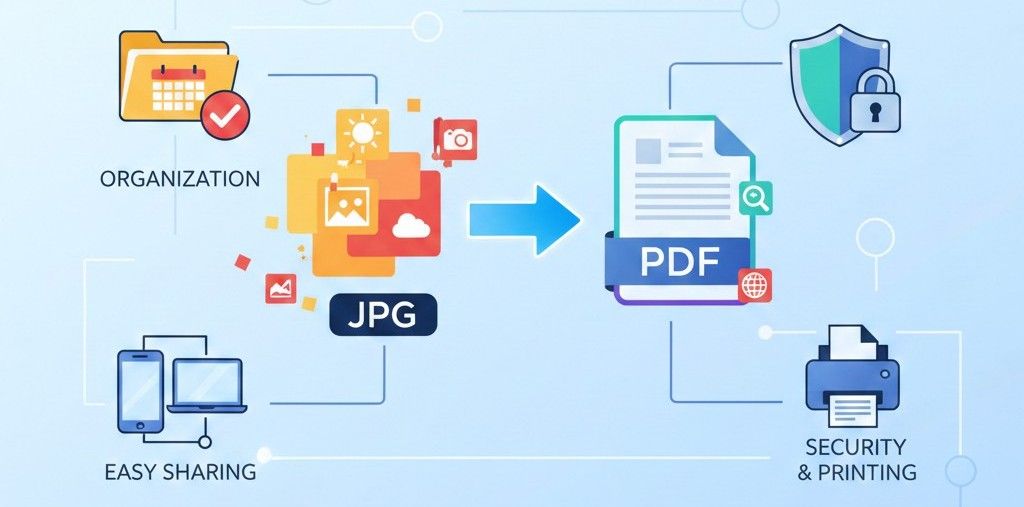
PDF files combine many images into one clean document that looks professional everywhere. This format improves sharing because people can open one file on any device. Teams present work better because a single PDF feels organized and reliable.
Image to PDF conversion protects layout and keeps image order clear. PDFs reduce clutter since emails need fewer attachments during work communication. PDF files keep text readable and stop accidental image changes online.
People also trust PDF documents more when they send records or important visual proofs. The conversion process saves time and supports printing with stable page sizes. Businesses can store PDFs easily and meet common document standards across systems.
JPG to PDF conversion requires reliable and high-end tools for smoother conversions. Here is a detailed guide on how to convert JPG to PDF using online software.
How JPG to PDF Conversion Works
JPG to PDF converters follow a specific conversion mechanism. The process starts when a user selects JPG images within a conversion tool. The tool reads each image file and checks the size, quality, and orientation. Next, the system prepares a blank PDF structure with pages matching the image needs. This setup creates a clear foundation for accurate image placement later during conversion workflows.
After preparation, the system aligns each image onto separate PDF pages. The tool scales images to fit pages without losing important visual details. Then the system embeds images directly inside the PDF file structure. This step keeps images stable across devices and different viewing software on every platform.
After this step, the tool arranges page order based on user preferences. The system applies consistent margins, which improve reading and printing results. Finally, the tool saves one PDF file that combines all selected images. This smooth process delivers a reliable document ready for sharing or storage across modern platforms.
Step-by-Step: Convert JPG to PDF
Here is how to convert JPG to PDF format using conversion software.
Step 1 (Upload JPG images):
Users upload JPG images through the tool interface with a secure selection option. The system checks image quality, size, and orientation before the next stage.
Step 2 (Arrange image order):
Users arrange the image order to match document flow and visual priority. The preview screen shows changes instantly and helps confirm correct placement.
Step 3 (Convert and download PDF):
The tool converts images into a single PDF file within seconds. Users can download the finished PDF and share it across devices easily.
Best JPG to PDF Tools
Here are some of the top image-to-PDF conversion tools for everyone.
Adobe Acrobat
Adobe Acrobat lets users upload JPG images and convert them directly into a PDF file in a web browser. The service works with many image formats beyond JPG. This converter keeps picture quality high without changing the look of the original images when they become PDF pages. Users can open the generated PDF file on almost any device or software that reads PDF documents.
Pros
- Trusted quality from the inventor of the PDF format
- Works in any browser without software installation
- Keeps original image details clear in the finished PDF
Cons
- Some advanced features require a sign-in and a subscription
- Must upload files online before conversion starts
- Lacks bulk processing unless you use Acrobat Pro tools
Smallpdf
Smallpdf lets users drag and drop image files into a box and create a PDF instantly. It supports multiple image uploads at once. Users see simple options such as margins, page orientation, and file order on the screen. The converter works in any web browser and removes uploaded files quickly after use for privacy.
Pros
- Very simple interface for beginners
- No software download is needed
- Supports reordering and adjusting PDF layout
Cons
- Free users face limits on daily tasks
- Larger batches may require a subscription
- Slight delay on bigger uploads reported by some users
iLovePDF
iLovePDF offers an easy online page where users upload JPG images and make a single PDF file. The tool shows options like page size, margin, and orientation. Users can merge images into a single file and save the PDF right away on their device.
Pros
- Quick setup with clear upload buttons
- Free use with basic features available
- Works on computers and mobile devices
Cons
- Larger images may require a premium account
- Ads may appear in the free version
- Fewer advanced settings than other tools
The following is a brief comparison of the JPG to PDF converters mentioned above.
| Feature / Tool | Adobe Acrobat | Smallpdf | iLovePDF |
|---|---|---|---|
| Free Online JPG to PDF | Yes | Yes | Yes |
| Multiple Images Supported | Yes | Yes | Yes |
| Adjustable Orientation | Basic | Yes | Yes |
| Layout / Margin Settings | No | Yes | Yes |
| Browser-Based | Yes | Yes | Yes |
| Subscription Limits | Some | Some | Some |
| Highest Conversion Quality | High | High | High |
When JPG to PDF Is Useful
Image to PDF conversion is useful in different cases, like:
Scanned Documents
JPG to PDF conversion helps organize scanned papers into one structured digital file. PDF format keeps page order clear and prevents changes during sharing or storage. Offices use PDFs because the format works smoothly across printers and operating systems.
Receipts and Records
Receipts saved as JPG images often create clutter and confusion over time. PDF files group receipts together and support easy review during audits. People trust PDF records more when submitting expense or tax-related documents.
Portfolios and Creative Work
Designers use JPG to PDF conversion to present images in a professional layout. PDF portfolios display work consistently on screens and printed pages. Clients review PDF files easily without losing image quality or arrangement.
Conclusion
So, JPG to PDF conversion creates professional documents that improve sharing organization and overall trust. The process combines images, preserves layout, and ensures consistent viewing across devices. Clear workflows and simple steps make conversion reliable for everyday personal needs.
Reliable tools guide users from upload through arrangement and final PDF download. Each stage checks the quality, order, and layout to prevent mistakes. This structure supports fast results without confusing settings or technical barriers.
Tools like Adobe Smallpdf and iLovePDF deliver strong, dependable conversion quality. JPG to PDF conversion is useful for scanned records, receipts, and portfolios across business creative workflows. Overall, JPG to PDF conversion improves efficiency, clarity, and professional communication.
FAQs
Does JPG to PDF reduce quality?
JPG to PDF conversion usually keeps image quality clear and readable. Good tools preserve resolution and color during the conversion process. Quality loss rarely occurs when users choose trusted and updated conversion software.
Can I combine multiple images?
Most JPG to PDF tools allow combining many images into one document. Users can control image order and page arrangement before final conversion. This feature helps create organized files from scattered image collections.
Is JPG to PDF free?
Many online JPG to PDF tools offer free conversion with basic features. Free versions may include limits on file size or daily usage. Premium plans unlock advanced options and faster processing speeds.
Can I adjust page size?
Most converters allow users to adjust page size and orientation easily. Options include A4 letter or custom dimensions for specific needs. These settings help improve printing results and document presentation quality.
Is it safe online?
Reputable JPG to PDF tools protect files using secure upload systems. Many conversion websites delete files automatically after conversion completes. Safety improves when users choose well-known platforms with clear privacy policies.