 English
 Spanish
 French
 German
 Italian
 Amharic
 Afrikaans
 Arabic
 Chinese
 Japanese
 Korean
 Turkish
 Finnish
 Bengali
 Czech
Czech
 Indonesian
 Danish
 Greek
Greek
 Hindi
Hindi
 Armenian
 Malay
Malay
 Dutch
Dutch
 Norwegian
 Polish
 Portuguese
 Romanian
 Russian
 Swedish
 Thai
Thai
 Vietnamese
 Ukrainian
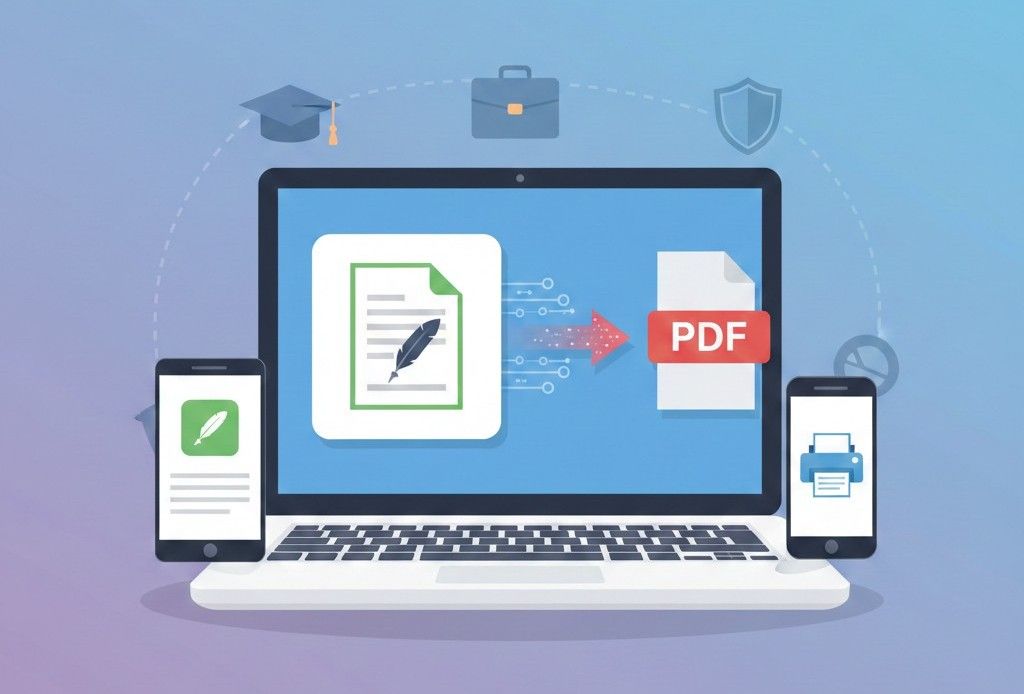
How to Convert Pages to PDF for Professional and Academic Use
The Importance of Pages to PDF Conversion
Apple Pages is widely used to create professional reports, resumes, research papers, and academic assignments. While Pages is excellent for editing and designing, sharing Pages files outside Apple devices often creates problems with formatting, compatibility, and printing.
Converting Pages to PDF ensures that documents:
- Retain layout and formatting
- Open on any device or operating system
- Maintain a professional appearance
- Are easy to upload and share
This article explains how to convert Pages files to PDF and why it is essential for academic, professional, and business purposes.
Why Pages Files Need to Be Converted to PDF
Pages files are editable and tied to the Apple ecosystem. Problems arise when:
- Recipients cannot open the file
- Fonts and layout appear differently
- Online submission platforms reject the file
- Printing produces inconsistent results
PDF files, on the other hand, are:
- Universally supported
- Read-only by default
- Fixed in layout and design
- Professional and print-ready
Converting Pages to PDF solves these issues efficiently.
Methods to Convert Pages to PDF
There are multiple ways to convert Pages files to PDF, including native Apple export, desktop software, and online tools.
1. Using Apple Pages Export Option
- Open the document in Pages
- Click File → Export To → PDF
- Select the preferred quality
- Save the PDF to your device
This method is effective but requires access to a Mac or iOS device.
2. Using Online Pages to PDF Converters
Online converters allow users to convert Pages files without software installation. They work on any device, including Windows and mobile.
Advantages include:
- No Apple device required
- Secure processing
- Fast conversion
- Layout preservation
Best Practices for Converting Pages Files to PDF
To ensure the best results:
- Finalize your document: Check for typos, formatting, and page breaks.
- Use standard fonts: Avoid custom fonts that may not display correctly.
- Check images and tables: Ensure they are within page boundaries.
- Remove comments or annotations: Optional, but improves clarity.
- Preview PDF before sharing: Verify formatting and readability.
Following these steps ensures professional and polished PDF output.
Pages to PDF for Academic Use
Students frequently submit assignments, essays, or research papers in PDF format. Submitting Pages files directly may lead to:
- Rejected uploads on learning management systems
- Formatting changes on non-Apple devices
- Poor printing results
By converting Pages files to PDF:
- Layout remains intact
- Submissions are accepted universally
- Documents appear professional
Pages to PDF for Professionals
For resumes, business reports, proposals, and contracts, PDF is the preferred format.
Converting Pages to PDF:
- Preserves visual design
- Prevents accidental edits
- Ensures clients and colleagues can open the file on any device
- Maintains professional appearance
Using an online Pages to PDF converter simplifies this workflow.
Pages to PDF for Printing
PDFs are print-ready. Unlike Pages files, PDFs:
- Preserve page breaks
- Maintain margins and spacing
- Ensure fonts display correctly
- Prevent unexpected layout shifts
This makes PDFs ideal for printing resumes, reports, or academic papers.
Pages to PDF Security Benefits
Converting Pages files to PDF can improve security:
- PDF can be made read-only
- Sensitive information can be password-protected
- Version control is easier
- Avoids accidental editing
These features make PDFs ideal for business contracts, confidential documents, and official submissions.
Additional PDF Tools to Enhance Pages Files
After converting Pages to PDF, other tools can improve document handling:
Compress PDF
Reduce file size for easier sharing.
Merge PDF
Combine multiple PDFs into a single document.
PDF to Word
Convert PDFs back to editable format if needed.
These tools streamline professional and academic workflows.
External Reference on PDF Standards
Adobe confirms that PDF is the global standard for reliable document sharing and printing:
PDF preserves content integrity across devices and platforms, making it universally accepted.
Conclusion: Pages to PDF for Seamless Sharing
Converting Pages files to PDF ensures your documents are compatible, professional, and print-ready. Whether you are a student, professional, or business user, Pages to PDF conversion eliminates formatting issues and improves document reliability.
Start converting Pages files to PDF quickly and securely online:
By following best practices, you can create polished PDFs that maintain layout, font, and design integrity across all platforms.
Frequently Asked Questions (FAQs)
Can I convert Pages to PDF without Apple devices
Yes. Online Pages to PDF converters work on any platform.
Will the PDF look exactly like my Pages file
Yes. Proper converters preserve layout, fonts, and images.
Is online Pages to PDF conversion secure
Yes. Trusted platforms process files securely and delete them after conversion.
Can I convert multiple Pages files at once
Some online tools support batch conversion for efficiency.
Is PDF the preferred format for submission and sharing
Yes. PDFs are universally supported, professional, and read-only by default.