 English
 Spanish
 French
 German
 Italian
 Amharic
 Afrikaans
 Arabic
 Chinese
 Japanese
 Korean
 Turkish
 Finnish
 Bengali
 Czech
Czech
 Indonesian
 Danish
 Greek
Greek
 Hindi
Hindi
 Armenian
 Malay
Malay
 Dutch
Dutch
 Norwegian
 Polish
 Portuguese
 Romanian
 Russian
 Swedish
 Thai
Thai
 Vietnamese
 Ukrainian
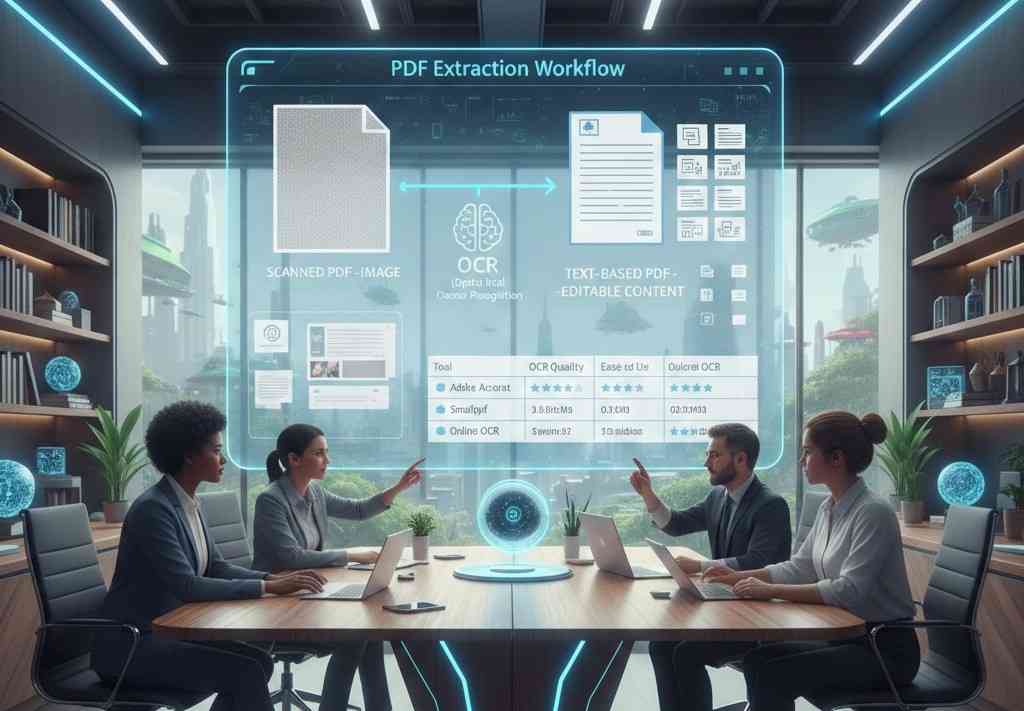
How to Extract Images and Text from a PDF in 2026
PDF extraction supports modern professionals who manage dense information across digital workplaces. Organizations handle many documents daily and need flexible access to text. PDF extraction enables smoother workflows and better control over shared knowledge.
Teams reuse content across reports, presentations, and systems without manual entry. This approach saves time and preserves accuracy during repeated professional tasks. Writers, analysts, and managers benefit from the quick adaptation of existing materials.
However, PDF extraction is not as easy as it looks. Many scanned PDFs contain images that block direct text editing access. Extraction tools convert image text into editable formats with character recognition. The following is a detailed guide on how to extract images from PDF files using reliable online tools. Let's get started with the basics.
Difference between Text-Based and Scanned PDFs
Text-based PDFs contain selectable text from digital sources like documents. Users search, copy, and edit content easily within text-based PDFs. Scanned PDFs store page images created through scanner or camera devices. These files block direct text selection and limit simple editing tasks.
OCR software reads characters inside images and converts them into text. This process enables search editing and copying within scanned PDF documents. OCR accuracy depends on image quality, font clarity, and proper language settings. Modern tools help professionals recover information from archives and paper records.
Step-by-Step: Extract Images from PDF
Here is how to how to copy image from PDF with the help of PDF extraction tools.
- Upload the PDF file through the online extraction tool interface panel.
- Choose the pages that contain the images you need from the document.
- Select each image preview and confirm quality and size before export.
- Adjust format options like PNG or JPG based on project needs.
- Start the extraction process using the tool controls shown onscreen clearly.
- Download the saved images to your device and verify the results carefully.
- Organize the images into folders that match your workflow needs clearly.
Step-by-Step: Extract Text from PDF Images
Let's have a look at how to extract text from PDF image.
- Select a reliable OCR tool that supports PDF image text extraction tasks.
- Upload the PDF image file through the OCR tool interface panel.
- Choose the correct language option to improve character recognition accuracy.
- Review image clarity and adjust contrast settings if the tool allows.
- Run the OCR process and wait for text conversion completion.
- Check the extracted text carefully for spelling and formatting errors.
- Correct mistakes manually to improve final document accuracy and usability.
Best PDF Extraction Tools
PDF extraction tools help professionals access text, images, and data locked inside PDF documents. These tools improve productivity, accuracy, and content reuse across modern digital workflows.
1. Adobe Acrobat
Adobe Acrobat offers a professional environment for managing, editing, and extracting PDF content. The tool supports advanced OCR features suitable for business and enterprise workflows. Users rely on Acrobat for consistent results across complex document types.
Pros
- Industry-standard software trusted by businesses and document professionals worldwide.
- High-quality OCR results support accurate text extraction from scanned documents.
- Works across desktop and browser platforms with stable performance.
Cons
- Subscription pricing may not suit casual or budget-focused users.
- Interface complexity can challenge first-time users initially.
- Large files sometimes require longer processing time.
2. Smallpdf
Smallpdf provides a simple web-based platform for common PDF tasks. The tool focuses on ease of use and quick document processing. Many users prefer Smallpdf for lightweight and frequent PDF extraction needs.
Pros
- A clean interface allows fast navigation without technical knowledge.
- Supports multiple PDF tools, including extraction, compression, and conversion.
- Browser-based access works across all operating systems easily.
Cons
- Advanced extraction features require a paid subscription plan.
- File size limits restrict the processing of large documents.
- OCR accuracy remains lower than enterprise-focused tools.
3. Online OCR
Online OCR focuses on text extraction from scanned images and PDFs. The tool targets users who need quick OCR without software installation. Free access makes Online OCR useful for basic document recovery tasks.
Pros
- Free access supports basic OCR needs without registration barriers.
- Multiple language options help international users extract text effectively.
- The simple upload process reduces learning time significantly.
Cons
- Accuracy varies depending on image quality and document structure.
- Free usage limits restrict frequent or bulk extraction tasks.
- Lacks advanced editing or formatting controls.
Here is a brief comparison of the PDF extraction tools mentioned above.
| Feature | Adobe Acrobat | Smallpdf | Online OCR |
|---|---|---|---|
| Cost | Paid subscription | Freemium model | Free basic use |
| OCR Quality | Excellent | Good | Moderate |
| Ease of Use | Professional level | Very easy | Very easy |
| Platform Support | Desktop and browser | Browser only | Browser only |
| File Handling | Large complex files | Medium files | Small files |
| Best Use Case | Professional workflows | Everyday PDF tasks | Quick OCR needs |
Conclusion: Reuse PDF Content Efficiently
PDF extraction helps professionals manage large document volumes across modern digital work environments. Organizations rely on extraction to reuse content quickly while maintaining accuracy and consistent formatting. Teams save time and reduce manual effort during reporting, analysis, and presentation tasks.
PDF extraction faces challenges because scanned files store images instead of editable text. OCR tools convert image-based text into editable content through character recognition technology. Text-based PDFs allow easy searching, copying, and editing compared with scanned documents.
Extraction tools follow clear steps for image and text recovery, including upload selection, processing, and review. Adobe Acrobat, Smallpdf, and Online OCR offer different benefits based on accuracy, cost, and workflow needs.
FAQs
Can I extract images from secured PDFs?
Image extraction from secured PDFs depends on the permission settings applied by the file owner. Some tools allow extraction when copying permissions remain enabled. Password-protected files often require authorized access before extraction becomes possible.
What is OCR and why is it needed?
OCR is optical character recognition technology that converts image-based text into editable content. This technology helps users search, edit, and reuse text from scanned PDFs that lack selectable digital text.
Are free tools accurate enough?
Free PDF extraction tools provide acceptable accuracy for basic documents with clear formatting. Complex layouts, low image quality, or technical documents usually require paid tools for reliable and consistent extraction results.