 English
 Spanish
 French
 German
 Italian
 Amharic
 Afrikaans
 Arabic
 Chinese
 Japanese
 Korean
 Turkish
 Finnish
 Bengali
 Czech
Czech
 Indonesian
 Danish
 Greek
Greek
 Hindi
Hindi
 Armenian
 Malay
Malay
 Dutch
Dutch
 Norwegian
 Polish
 Portuguese
 Romanian
 Russian
 Swedish
 Thai
Thai
 Vietnamese
 Ukrainian
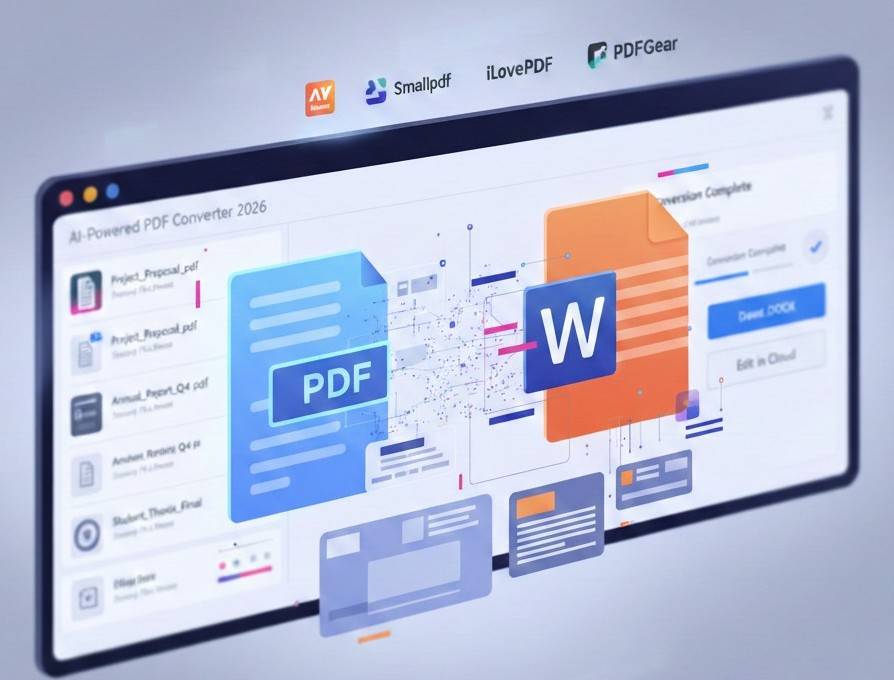
How to Convert PDF to Word without Losing Formatting in 2026
PDF documents remain popular in 2025 across business education worldwide sectors, and 2026 is expected to be the same. Many users need flexible documents that support quick updates without full file recreation. Word formats give direct control over text, tables, images, and structure.
PDF to Word conversion solves editing limits within static document designs. Users gain full access to text tables and layouts after conversion. The process saves time and reduces errors during document update tasks.
Businesses benefit from faster workflows and improved accuracy across shared documents. Students and professionals edit content easily and keep original formatting intact. PDF to Word converters support productivity goals in modern digital environments. The following is a detailed guide on how to convert PDF to Word using the top solutions. We will also share tips for efficient and smooth conversion. Let's get started with the basics.
How PDF to Word Conversion Works
Modern PDF to Word conversion uses advanced AI systems for accurate document understanding. These systems scan text layers, fonts, and layout structure inside each PDF file. The analysis helps software recognize content order and relationships across different document sections. Based on this understanding, the converter rebuilds the document in editable Word format.
After conversion, users can edit content easily without damaging the original document structure. AI converters also handle complex fonts, charts, and multilingual text effectively. The technology learns from many documents and improves accuracy over time. This connection between analysis and editing explains the value of PDF conversion tools.
Step-by-Step: Convert PDF to Word
This step-by-step process will convert PDF documents into editable Word files easily.
- First, upload your PDF file through the converter interface with a secure connection.
- Next, select the Word DOCX format from the available options displayed on the screen.
- Then start the conversion process after confirmation of the format choice and file readiness.
Finally, download the editable Word file and begin editing text tables and layouts. These clear steps save time and ensure accurate document results for many users.
Best PDF to Word Tools in 2026
The following are some of the world's best PDF to Word conversion tools in 2026.
1. Adobe Acrobat
Adobe Acrobat remains one of the most reliable PDF to Word converters worldwide. This tool offers high accuracy in maintaining text layout and formatting when converting PDF files into Word documents.
Users can use the online interface or desktop app to export PDFs into editable DOCX files without losing original structure. Acrobat also supports optical character recognition (OCR) for scanned documents, making it versatile across document types.
Pros
- Provides very strong formatting preservation each time
- Works on multiple devices, including web browsers and apps
- Includes OCR for scanned PDF documents
Cons
- Requires a paid subscription for full conversion features
- New users may find the interface complex at first
- Advanced features need more storage and computing resources
2. Smallpdf
Smallpdf stands out as an easy online PDF to Word converter with a clean interface and robust editing options. Users can upload a PDF quickly and then convert it into a Word document within minutes. Drag-and-drop makes it easy to manage files without installing software. Smallpdf also offers various other tools for compressing and merging PDFs.
Pros
- Works directly in a browser without needing downloads
- Keeps most fonts and layouts accurate after conversion
- Integrates with cloud storage services
Cons
- Some advanced tools require a Pro subscription
- Free users face limits on file size or number of tasks
- OCR functionality may need a paid upgrade
3. iLovePDF
iLovePDF offers a simple web tool for converting PDF files into editable Word documents. Its interface makes uploads easy and conversion fast, so users can get DOCX files ready for editing. This service also includes other document tools, such as merging and splitting pages. It supports basic OCR, though advanced use may require a premium account.
Pros
- Straightforward conversion process on any device
- Broad suite of PDF utilities available in one place
- Works with cloud storage like Drive and Dropbox
Cons
- Free version includes ads and feature limits
- Complex scans may not convert as cleanly without the premium model
- Batch conversion may need a paid plan
4. PDFgear
PDFgear offers a free PDF to Word converter that works in browsers and apps. This tool supports the conversion of text and scanned files using OCR while preserving the original layout and fonts. PDFgear also gives users editing tools alongside conversion functions that support PDF management in one software.
Pros
- 100% free online conversion with OCR support
- Works on multiple operating systems and devices
- Includes extra PDF editing and formatting tools
Cons
- Some online users report inconsistent results
- Features may not match enterprise-grade alternatives
- Batch conversion may require an offline app
Here is a brief comparison of the above-mentioned PDF to Word converters.
| Tool Name | Free Use | OCR Support | Ease of Use | Best Feature |
|---|---|---|---|---|
| Adobe Acrobat | Limited | Yes | Moderate | Professional accuracy |
| Smallpdf | Yes | Paid option | Easy | Fast online conversion |
| iLovePDF | Yes | Limited | Easy | Integrated suite of tools |
| PDFgear | Yes | Yes | Moderate | Free OCR and editing tools |
Common Conversion Issues
Users often face conversion issues, which can affect the workflow. Here are common PDF to Word conversion issues and how to address them.
1. Font Mismatch Problems
Font mismatch appears when converters replace original fonts with similar alternatives. This issue affects visual consistency and reduces document professionalism.
Users can solve this problem by selecting advanced converters with strong font recognition. Manual font replacement inside Word also restores the original document appearance effectively.
2. Table Distortion Errors
Table distortion occurs when complex rows and columns lose alignment after conversion. This problem disrupts data readability and causes confusion during document editing.
Converters with layout detection handle tables more accurately across different formats. Users can fix remaining issues by adjusting table borders and column widths manually.
3. Scanned PDFs Requiring OCR
Scanned PDFs contain images instead of editable text content. Standard converters cannot process such files without OCR technology support.
OCR-enabled tools extract readable text from scanned documents accurately. Users should choose high-quality OCR tools and verify text accuracy after conversion.
Conclusion
PDF to Word conversion supports modern editing needs across business education and professional workflows. Editable Word files allow users to update text tables and layouts efficiently. This flexibility reduces recreation effort and improves document accuracy across teams today.
AI-based converters analyze document structure, fonts, and text layers carefully. Reliable tools like Adobe Acrobat, Smallpdf, iLovePDF, and PDFgear deliver strong results. Each platform offers different strengths related to accuracy, cost, and advanced features.
PDF to Word conversion issues include font mismatch, table distortion, and scanned files without text. Users can solve these problems through better tools, OCR support, and manual adjustments. Careful tool selection ensures smooth conversion and long-term document usability.
FAQs
Can I convert PDF to Word for free?
Many online tools allow free PDF to Word conversion with basic features included. Free versions handle small files and simple layouts effectively. Limits may apply to file size, daily usage, or advanced editing options.
Does conversion keep fonts and layout?
Modern converters preserve fonts, layouts, and spacing with good accuracy. Advanced tools analyze document structure before conversion begins. Minor font differences may appear, and users can correct them easily inside Word.
Can scanned PDFs be converted?
Scanned PDFs require OCR technology to extract editable text content. Tools with OCR convert image-based documents into readable Word files. Text accuracy improves when scan quality remains high and clear.
Is PDF to Word safe online?
Trusted converters use secure connections and automatic file deletion systems. Reputable platforms protect user data during the upload and processing stages. Users should avoid unknown websites and read privacy policies carefully.
Which tool is best in 2026?
Adobe Acrobat offers the highest accuracy and professional-level features. Smallpdf and iLovePDF provide fast browser-based solutions for everyday needs. PDFgear stands out for free OCR support and extra editing tools.