 English
 Spanish
 French
 German
 Italian
 Amharic
 Afrikaans
 Arabic
 Chinese
 Japanese
 Korean
 Turkish
 Finnish
 Bengali
 Czech
Czech
 Indonesian
 Danish
 Greek
Greek
 Hindi
Hindi
 Armenian
 Malay
Malay
 Dutch
Dutch
 Norwegian
 Polish
 Portuguese
 Romanian
 Russian
 Swedish
 Thai
Thai
 Vietnamese
 Ukrainian
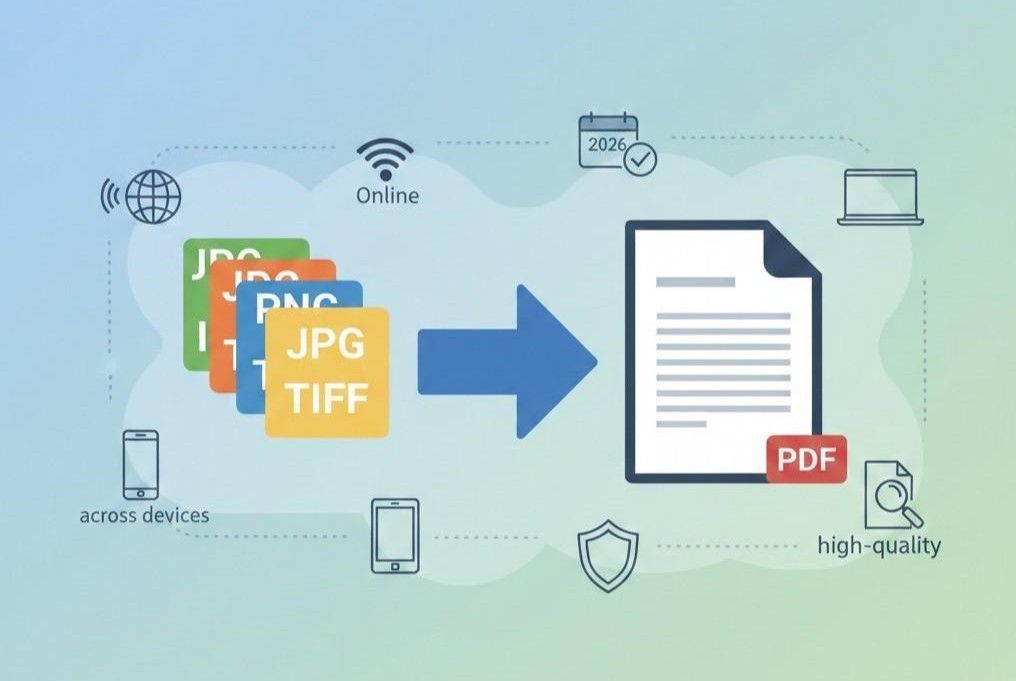
How to Convert Images to PDF Online in 2026
Image to PDF conversion matters because digital work demands clear exchange across devices today in offices worldwide. PDF files open reliably on phones, laptops, and desktops without format loss issues across many systems today.
Images alone cause problems with order size and access during professional communication in modern workplaces today. PDF format keeps pages together, preserves text clarity, and supports secure document exchange for teams worldwide today.
Image to PDF conversion saves time, reduces confusion, and improves consistent document management within busy offices. Businesses, students, and creators benefit because one PDF replaces many image files easily during daily work tasks.
The following is a detailed guide on how to convert image to PDF using online tools. We will also share conversion tips for optimal results.
How Image to PDF Conversion Works
Images to PDF conversion begins when users upload selected image files. The tool reads each image format and prepares a standard page size. Software sets resolution, orientation, and margins to match clear document viewing.
Each image enters a new page, which keeps order and visual consistency. The system compresses files carefully and keeps quality during final document creation. Text data metadata and color profiles stay intact throughout conversion steps.
Users review page order size and layout before final PDF storage. The tool then creates one file that opens consistently across devices. The PDFs support sharing, printing, and archiving with a reliable structure everywhere.
Step-by-Step: Convert Image to PDF
Here is how you can convert images to PDF via online tools.
Step 1: Upload Image Files
Users upload image files from devices or cloud storage easily. The tool accepts common formats such as JPG, PNG, and TIFF files. Clear previews appear and help users confirm correct image selection quickly.
Step 2: Select Page Layout
Users then choose page size, orientation, and margins for each document layout. Layout options support single images or multiple images per page cleanly. The tool displays changes instantly and ensures visual balance during preview.
Step 3: Download PDF
Users start PDF creation after the final layout review confirmation step. The system combines images into one PDF file securely for sharing. Users can download the PDF and share, store, or print confidently anywhere.
Best Image to PDF Tools
Here are some of the most reliable tools for image to PDF conversion.
Smallpdf
Smallpdf offers a simple online image to PDF conversion experience for everyday users. The platform works through browsers and supports fast uploads across many devices.
Security features protect files during conversion, and deletion happens after short storage periods. The interface feels clean and helps beginners complete tasks without confusion or delays.
Pros
Smallpdf supports many image formats and handles conversions with consistent quality results.
The tool works on browsers without software installation across different operating systems easily.
Cloud integration allows access from Google Drive and Dropbox accounts securely.
Cons
Free usage limits restrict daily conversions for frequent professional users.
Advanced editing features require a paid subscription for full access.
Internet access remains necessary since offline mode support does not exist.
PDFgear
PDFgear provides free image to PDF conversion with strong offline desktop support. The software runs on Windows and macOS systems without usage restrictions. Users access conversion tools without account creation or payment requirements.
The interface suits users who prefer desktop control and faster local processing.
Pros
PDFgear allows unlimited conversions without cost or watermark restrictions.
Offline functionality protects privacy and improves processing speed on local machines.
The tool includes basic editing features within the same application.
Cons
Mobile device support remains limited compared with browser-based tools.
Interface design feels less modern than many cloud-based alternatives.
Cloud storage integration features remain unavailable within the platform.
Adobe Acrobat
Adobe Acrobat delivers professional image-to-PDF conversion with enterprise-grade features. The tool integrates deeply with document editing and security options.
Businesses trust Adobe Acrobat for accuracy and long-term document management needs. Subscription plans unlock advanced tools across desktop and mobile platforms.
Pros
Adobe Acrobat ensures high accuracy and excellent layout preservation always.
Advanced security options protect sensitive documents with encryption tools.
Cross-platform support allows seamless use across devices and operating systems.
Cons
Subscription pricing feels expensive for casual or occasional users.
Interface complexity challenges beginners during early usage stages.
Performance may slow on older devices with limited hardware resources.
Let's have a brief comparison of the tools above.
| Tool Name | Cost Model | Platform Support | Best Use Case |
|---|---|---|---|
| Smallpdf | Free with limits and paid plans | Web-based across devices | Quick online image to PDF conversion |
| PDFgear | Completely free | Windows and macOS desktop | Offline unlimited image conversions |
| Adobe Acrobat | Paid subscription | Desktop and mobile platforms | Professional document management needs |
Image Layout Options
When converting images to PDF, here is what you need to know about image layout options.
Portrait Layout
Portrait layout suits documents that require vertical reading, such as reports. Image to PDF tools place images upright and maintain natural viewing flow. This layout supports standard printing and improves readability across digital screens.
Landscape Layout
Landscape layout works well for wide images such as charts and presentation slides. Conversion tools rotate images and align content across horizontal PDF pages. This option prevents image cropping and preserves visual balance effectively.
Margin Settings
Margin settings control spacing between image edges and PDF page borders. Proper margins improve document appearance and prevent content from touching edges. Image to PDF tools allow users to adjust margins based on output needs.
Image Scaling
Image scaling adjusts image size without harming clarity or sharpness. Scaling options help large images fit correctly within selected page layouts. Balanced scaling ensures professional results during image to PDF conversion.
Conclusion
Image to PDF conversion improves document sharing across devices and workplaces. PDF files maintain order clarity and compatibility better than individual image files. Professionals, students, and creators gain efficiency through organized file management.
Conversion tools process uploaded images, set page layout, and preserve visual quality. Users can adjust orientation margins and scaling before final PDF creation. The result opens consistently and supports sharing, printing, and long-term storage.
Online tools like Smallpdf, PDFgear, and Adobe Acrobat serve different needs. Each option balances cost features and platform support for users.
FAQs
Which image formats are supported?
Most image-to-PDF tools support JPG, PNG, BMP, and TIFF formats. These formats cover photos, scans, and graphics from common devices. Users upload images from cameras, phones, and scanners without format issues. Support for popular formats ensures smooth conversion across different workflows.
Can I reorder images?
Image to PDF tools allow easy image reordering before final file creation. Users drag images into the preferred sequence within the preview screens. The correct order improves document flow and reading experience significantly. Reordering features help users avoid mistakes during document preparation.
Is image to PDF free?
Many image to PDF tools offer free conversion with basic features. Free versions often include limits on file size or usage frequency. Some platforms require payment for advanced editing or unlimited access. Users should review tool limits before choosing a free option.
Does PDF keep image quality?
PDF files preserve image quality when tools use proper compression settings. High-resolution images maintain clarity during professional document sharing. Quality settings allow a balance between file size and visual sharpness. Reliable tools protect image details throughout the conversion process.
Can I convert images on mobile?
Image to PDF conversion works well on mobile devices through browsers. Many tools support Android and iOS systems without extra software. Mobile conversion helps users manage documents while traveling or working remotely. Cloud-based tools ensure smooth access across phones and tablets.