 English
 Spanish
 French
 German
 Italian
 Amharic
 Afrikaans
 Arabic
 Chinese
 Japanese
 Korean
 Turkish
 Finnish
 Bengali
 Czech
Czech
 Indonesian
 Danish
 Greek
Greek
 Hindi
Hindi
 Armenian
 Malay
Malay
 Dutch
Dutch
 Norwegian
 Polish
 Portuguese
 Romanian
 Russian
 Swedish
 Thai
Thai
 Vietnamese
 Ukrainian
Common Problems When Converting Pages to PDF and How to Fix Them
Converting Apple Pages files to PDF is usually simple, but many users face unexpected formatting problems after conversion. Text shifts, fonts change, images move, or spacing looks different from the original design.
These issues can be frustrating, especially when submitting assignments, resumes, reports, or business proposals. This guide explains the most common Pages to PDF conversion problems and provides clear, practical solutions to fix them. The goal is to help you produce clean, professional PDF documents every time.
Why Pages to PDF Formatting Issues Happen
Before solving the problems, it is important to understand why they occur.
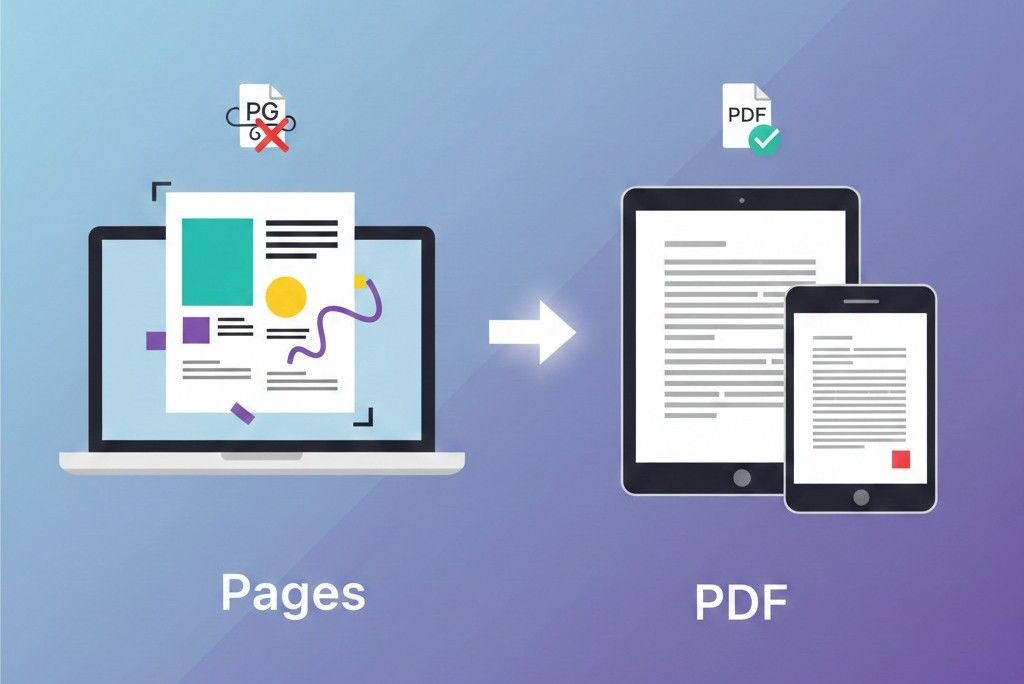
Pages is a dynamic editing format. It allows live changes, flexible layouts, and font variations. PDF, on the other hand, locks formatting into a fixed layout. During this transition, small inconsistencies may appear.
Common causes include:
- Unsupported fonts
- Incorrect page size settings
- Large images affecting layout
- Hidden formatting elements
- Margin inconsistencies
- Export quality settings
Understanding these causes makes troubleshooting easier.
Problem 1: Fonts Change After Conversion
Why It Happens
If your document uses custom or non-standard fonts, they may not embed properly into the PDF. When opened on another device, the system replaces the font with a default one.
How to Fix It
- Use standard fonts such as Arial, Times New Roman, or Helvetica.
- Before exporting, check font consistency throughout the document.
- Export using high-quality PDF settings.
- Use a reliable online converter such as:
This ensures fonts are preserved correctly.
Problem 2: Layout Shifts or Text Moves
Why It Happens
Layout issues usually occur because:
- Page size settings differ from the final PDF size
- Margins are too tight
- Images are not anchored correctly
How to Fix It
- Confirm page size in Pages before exporting.
- Use consistent margin settings.
- Avoid text wrapping around floating objects unless necessary.
- Preview the PDF before sharing.
Keeping the layout simple reduces conversion risks.
Problem 3: Images Appear Blurry in the PDF
Why It Happens
Low-resolution images or compressed export settings may reduce image quality.
How to Fix It
- Use high-resolution images in your document.
- Export at best quality settings.
- Avoid resizing small images to large dimensions.
If file size becomes too large after using high resolution, you can optimize it using:
This reduces size without major quality loss.
Problem 4: Large File Size After Conversion
Why It Happens
PDF files can become large due to:
- High-resolution images
- Embedded fonts
- Complex design elements
How to Fix It
After converting Pages to PDF , use a compression tool to reduce file size without affecting readability.
This is especially helpful for email attachments or academic uploads with file size limits.
Problem 5: File Not Accepted by Submission Portals
Why It Happens
Some platforms reject files if:
- The PDF version is outdated
- The document contains hidden layers
- The file is corrupted during export
How to Fix It
- Re-export using standard PDF settings.
- Ensure the file opens correctly on multiple devices.
- Convert using a stable tool like.
Always double-check file compatibility before submission.
Problem 6: Hyperlinks Stop Working
Why It Happens
Sometimes links are not properly exported from Pages.
How to Fix It
- Ensure hyperlinks are correctly formatted inside Pages.
- Test all links in the PDF before sending.
- Avoid copying and pasting broken URLs.
Hyperlink testing is especially important for resumes and business proposals.
Best Practices for Smooth Pages to PDF Conversion
To avoid most problems, follow this checklist:
- Finalize all edits before conversion
- Use standard fonts
- Keep layout clean and simple
- Use proper page size settings
- Preview before sharing
- Compress file if needed
These small steps dramatically reduce formatting risks.
Why PDF Is the Safer Final Format
PDF is preferred for professional and academic sharing because:
- It preserves layout across devices
- It prevents accidental editing
- It maintains print consistency
- It is universally supported
According to Adobe , PDF remains the global standard for document sharing and presentation:
This explains why most submission systems require PDF format.
Recommended Workflow for Error-Free Conversion
- Create and edit document in Pages
- Review formatting carefully
- Convert using a trusted tool
- Open the PDF and verify layout
- Compress if necessary
- Submit or share confidently
This structured workflow ensures professional output every time.
Conclusion
Converting Pages to PDF should be simple, but small mistakes can cause big formatting problems. Fonts, layout settings, image quality, and export options all play a role in the final result.
By understanding common issues and applying the fixes outlined in this guide, you can ensure your PDFs look professional, consistent, and ready for submission.
Frequently Asked Questions
Why does my PDF look different from my Pages file
Formatting differences usually occur due to fonts, margins, or page size settings.
Can I fix formatting after converting to PDF
Yes. You can convert the PDF back to an editable format using:
Is it better to use an online converter or built-in export
Both work well, but online converters offer flexibility across devices.
How do I reduce PDF size after conversion
Use a compression tool to optimize file size while keeping readability.
Is PDF required for job applications and academic submissions
In most cases, yes. PDF is the preferred and accepted format worldwide.