 English
 Spanish
 French
 German
 Italian
 Amharic
 Afrikaans
 Arabic
 Chinese
 Japanese
 Korean
 Turkish
 Finnish
 Bengali
 Czech
Czech
 Indonesian
 Danish
 Greek
Greek
 Hindi
Hindi
 Armenian
 Malay
Malay
 Dutch
Dutch
 Norwegian
 Polish
 Portuguese
 Romanian
 Russian
 Swedish
 Thai
Thai
 Vietnamese
 Ukrainian
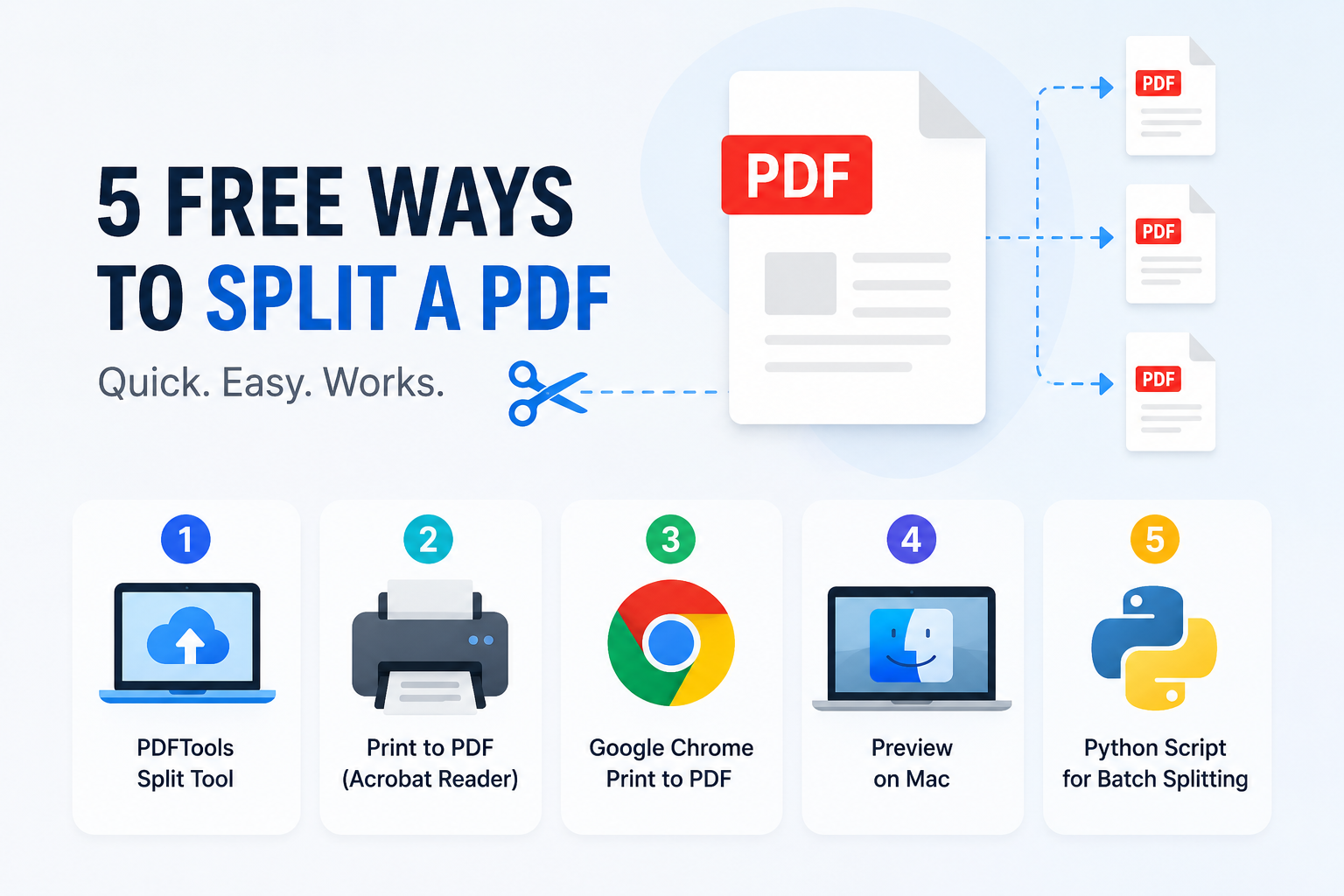
How to Split a PDF into Multiple Files: 5 Free Methods That Actually Work
When You Need Only Part of a Document
Splitting a PDF is one of those tasks that sounds technical but is actually straightforward once you know the right approach. You might need to extract a specific section from a long report to share with a colleague who only needs that part. You might have received a scanned batch of documents that need to be separated into individual files. Or perhaps you need to reduce a file to a size small enough to email by removing pages you do not need.
There are five free methods that handle this reliably, and the best one depends on your situation. Some are browser-based with no software required. Others use tools already installed on your computer. One is for developers who need to split PDFs in bulk automatically.
Method 1: PDFTools Split Tool (No Software, Any Device)
The simplest approach for most people is to use a browser-based tool that handles the splitting without requiring any software installation.
- Open your browser and go to PDFTools/split-pdf.
- Upload your PDF by clicking the upload button or dragging it onto the page. You can also import directly from Google Drive or Dropbox.
- Choose how you want to split: extract a range of pages, split at specific page numbers, or extract every page as a separate file.
- Click the split button and wait for processing.
- Download the resulting files individually or as a ZIP archive.
Files are automatically deleted from the server after one hour and the tool is completely free with no registration required. If you want to combine the resulting files into a different order afterwards, the merge PDF tool works alongside the splitter to give you full control over document structure.
Method 2: The Print to PDF Trick in Adobe Acrobat Reader
If you have Adobe Acrobat Reader installed (the free version), you can extract specific pages using the print dialog without needing any additional tools.
- Open your PDF in Adobe Acrobat Reader.
- Press Ctrl+P on Windows or Cmd+P on Mac to open the Print dialog.
- Change the printer to Microsoft Print to PDF on Windows, or choose Save as PDF on Mac.
- Under Pages, select the option to print specific pages and enter the range you want to extract, such as 15 to 30.
- Click Print or Save and choose where to save the new file.
Repeat this process for each section you want to extract. It is slightly slower than an online tool for many sections, but it requires no upload and keeps everything on your device.
Tip: This method also works in any PDF reader that supports printing, not just Acrobat. If you can print a PDF, you can extract pages from it.
Method 3: Google Chrome Browser (Works on Any Operating System)
Every computer with Google Chrome installed has a built-in PDF page extractor, even without Adobe Reader or any other PDF software.
- Open your PDF in Chrome by dragging the file into a Chrome browser window, or right-clicking it and choosing Open with Google Chrome.
- Press Ctrl+P on Windows or Cmd+P on Mac.
- Change the destination printer to Save as PDF.
- Click More settings and enter your page range in the Pages field.
- Click Save and choose your output location.
This is one of the most underused built-in features on any platform. Because Chrome is available on Windows, Mac, Linux, and Chrome OS, this method works universally without any additional downloads.
Method 4: Preview on Mac (Most Visual and Flexible)
For Mac users, the built-in Preview application offers the most intuitive and visual approach to splitting PDFs, with drag-and-drop page management.
- Open your PDF in Preview.
- Go to View in the menu bar and choose Thumbnails. A panel showing page thumbnails will appear on the left.
- Click the thumbnail of the page you want to start extracting. Hold Shift and click to select a range, or hold Cmd and click to select non-consecutive pages.
- Drag your selected pages directly from the thumbnail panel to your Desktop or a Finder folder.
Preview creates a new PDF file containing exactly the pages you dragged. You can also reorder pages within the original document by dragging thumbnails around in the panel, which is useful for reorganising documents before splitting or merging.
After splitting, if you want to combine the extracted sections in a different order or with other documents, use the merge PDF tool at PDFTools for a fast browser-based solution.
Method 5: Python Script for Batch Splitting
For users who need to split many PDFs regularly, such as processing hundreds of scanned invoices or separating batch exports from a document management system, a Python script provides complete automation with no manual effort per file.
The pypdf library (installed with pip install pypdf) lets you open any PDF, read its pages, and write selected pages to new output files. A basic script to split a document every 10 pages, or to extract pages based on a list of ranges, takes about 15 lines of code and processes a 500-page document in a few seconds.
This approach keeps all files local with no upload, can be scheduled or triggered automatically, and can be integrated into larger document processing workflows. For IT professionals, developers, and office administrators handling document processing at scale, it is the most efficient option by far.
Which Method Should You Use
For an occasional task on any device, the online tool at PDFTools is the fastest starting point with no setup required. For users who prefer to keep files local, the Chrome or Acrobat Reader print method works on any platform. Mac users with complex needs will find Preview the most flexible. Developers and users with volume requirements should use a Python script.
Conclusion
Splitting PDFs does not require paid software or technical expertise. The five methods in this guide cover every common scenario from quick one-off extractions to automated batch processing. For most people, the online tool or the browser-based print method solves the problem in under two minutes. Mac users have the added benefit of Preview's visual drag-and-drop interface. The important thing to know is that splitting never degrades quality, the output is always faithful to the original.
For combining split sections with other documents, see the merge PDF tool. For reducing the size of the resulting files, the compress PDF tool is available free at PDFTools.
Frequently Asked Questions
Can I split a password-protected PDF?
Not without the correct password. Most tools will prompt you to enter it when you upload or open the file. Once you provide the correct password, the splitting proceeds normally. If you do not have the password, the file cannot be split, and attempting to bypass PDF protection without authorisation is illegal in most countries.
Does splitting a PDF reduce its quality?
No. Splitting extracts pages without re-rendering them. The content of the output pages is identical to the original at the byte level. Image quality, text clarity, and all formatting are completely preserved.
Is there a page limit for splitting PDFs online?
Limits depend on the service. PDFTools handles files up to several hundred pages on its free tier. For the browser-based methods using Chrome or Acrobat Reader, there is no page limit beyond your computer's available memory.
Can I split a PDF into individual pages automatically?
Yes. The online tool at PDFTools includes an option to extract every page as a separate file, producing a ZIP archive you can download. The Python script method can also do this automatically for large batches.