 English
 Spanish
 French
 German
 Italian
 Amharic
 Afrikaans
 Arabic
 Chinese
 Japanese
 Korean
 Turkish
 Finnish
 Bengali
 Czech
Czech
 Indonesian
 Danish
 Greek
Greek
 Hindi
Hindi
 Armenian
 Malay
Malay
 Dutch
Dutch
 Norwegian
 Polish
 Portuguese
 Romanian
 Russian
 Swedish
 Thai
Thai
 Vietnamese
 Ukrainian
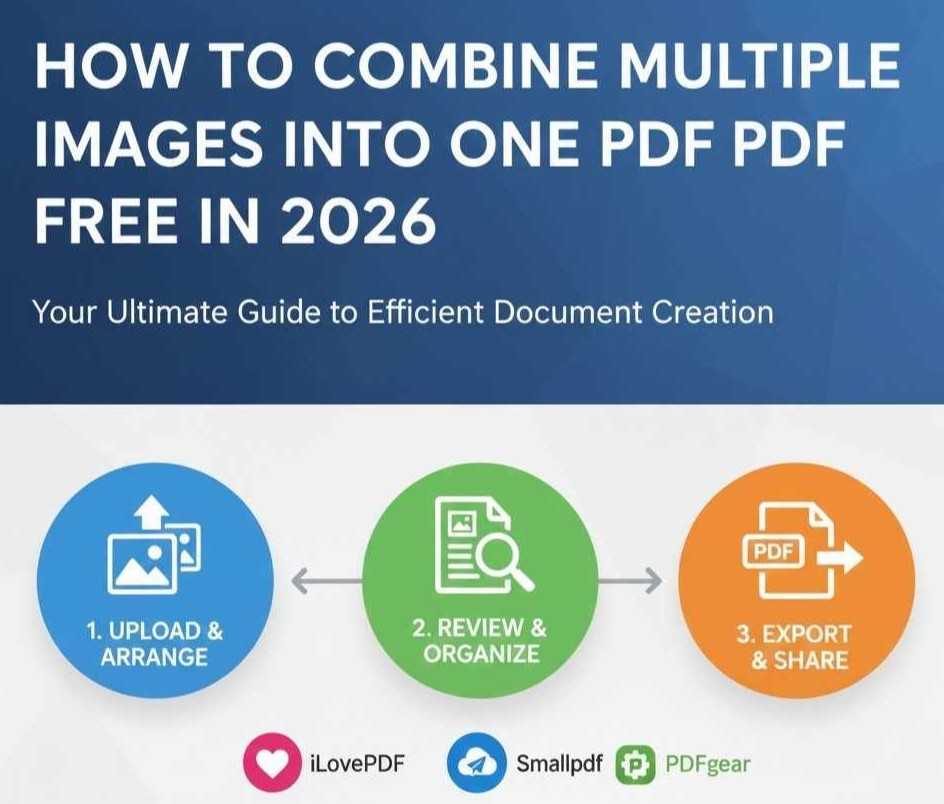
How to Combine Multiple Images into One PDF for Free in 2026
Multi-image PDFs help users organize related visuals into one clear document efficiently. For example, students rely on them during assignments that require charts, photos, and scanned notes. Teachers appreciate a simple review because every page appears in the correct order. This format saves time and reduces confusion during the study and submission process overall.
Lawyers depend on multi-image PDFs when legal documents include evidence images. The single file supports accuracy and helps teams share records safely and securely online. Businesses also use this format in reports that combine graphs, receipts, and signatures. Clear presentation builds trust and improves decisions across meetings and reviews.
Combining multiple images into a PDF requires using efficient tools and the skills to use them correctly. The following is a detailed guide on how to combine images into one PDF using different tools.
How Combining Images into a PDF Works
Combining images into one PDF involves different processes. That said, page stacking places images into a clear order inside one continuous document. Each page follows the previous page, which helps readers understand information. This structure prepares the foundation for later steps in the PDF process.
After stacking, image scaling adjusts the size so visuals fit the pages correctly. Consistent sizes protect clarity and connect with the earlier page order. Balanced dimensions support readability and maintain attention across every document page.
Layout consistency then guides margins, spacing, and alignment across all combined pages. Uniform layout links scaled images with the original stacking sequence clearly. This visual uniformity strengthens flow and supports understanding from start to finish.
Readers benefit because a consistent design reduces distraction during long review sessions. Together, these steps create a dependable PDF experience across many uses.
Step-by-Step: Make One PDF from Multiple Images
Here is the step-by-step guide on how to make a PDF from multiple images.
- Step 1: Upload images from your device into the chosen PDF creation tool
- Step 2: Check image quality and confirm every file displays clearly before continuing
- Step 3: Arrange order through clear placement of images in a logical sequence
- Step 4: Review the sequence to ensure pages flow smoothly across the document
- Step 5: Export PDF with the tool settings and save the final file
Your file is ready to share; keep the original images stored safely for future updates and edits.
Best Free Tools to Combine Images into PDF
Below are three popular free tools you can use to combine images into a PDF.
1. iLovePDF
iLovePDF offers a suite of PDF tools, including an image-to-PDF converter and file merger. You can upload JPG, PNG, or other image formats and convert them into a single PDF document. Users also get tools to merge, compress, and organize PDF files easily. It works directly in a web browser without installing any software
Pros
- Easy online tool with simple upload and conversion steps
- Free to use without registration or subscription
- Supports multiple image formats in one PDF file
Cons
- Must convert images before merging them
- Offers fewer advanced features than paid editors
- You must be online to use it
2. Smallpdf
Smallpdf provides a reliable online image-to-PDF converter and merging features in a clear interface. You can drag and drop images, arrange their order, and export a combined PDF in minutes. The service works in any modern web browser and supports many file types.
Pros
- Works on any device through a browser
- Provides a preview before conversion
- Strong security with encryption and automatic deletion
Cons
- Free use may be limited to a few tasks per day
- Cloud upload requires an internet connection
- Some advanced tools require a paid plan
3. PDFgear
PDFgear is a free PDF editor that includes an online image-to-PDF converter and a powerful PDF merger tool. You can upload many images, arrange them in the right sequence, and export a single PDF. PDFgear also offers offline desktop and mobile apps with many editing options.
Pros
- Completely free with no limits or watermarks
- Works with many major image formats
- Offers both online tools and desktop apps
Cons
- Online tools still need a stable internet connection
- Desktop app may take longer to learn
- Not all advanced editing features are available yet
Tips for Clean, Professional Output
The following tricks will help you obtain cleaner and professional output when combining multiple images into a PDF.
Same Image Size
Consistent image size creates balance and improves visual flow across every PDF page. Editors resize images before upload, which prevents uneven margins and awkward spacing. Uniform dimensions help readers focus on content instead of layout problems. This practice also supports smooth printing and better screen viewing results.
Proper Orientation
Correct orientation keeps images readable and avoids distraction during document review. Creators rotate images so text and visuals align naturally on each page. This adjustment improves understanding and supports a professional presentation style. Clear alignment also helps when sharing files across different devices.
Compression Settings
Smart compression settings protect quality while reducing overall PDF file size. Editors choose moderate compression, which keeps images sharp and text readable. Balanced settings support faster sharing without damaging important visual details. This approach improves storage efficiency and maintains a polished final document.
Conclusion: One PDF From Many Images-Done Right
Multi-image PDFs organize visuals clearly and support students, teachers, lawyers, and other professionals daily. Clear order reduces confusion, saves time, and improves review quality across many professional tasks.
The process uses stacking, scaling, and layout control, which creates readable and consistent documents. Simple steps help users merge images into PDF using reliable tools confidently. Free tools like iLovePDF, Smallpdf, and PDFgear offer accessible features for quick creation.
Clean output depends on equal sizes, correct orientation, and smart compression choices. These practices ensure professional results and improve sharing across devices and audiences. Readers gain confidence through consistency, clarity, and dependable workflow results overall.
FAQs
How many images can I combine into one PDF?
Most PDF tools support dozens or hundreds of images within one document easily. Limits depend on the tool capacity, file size, and device memory available. Online services may restrict uploads, but desktop apps allow larger projects.
Does combining images reduce quality?
Image quality usually remains stable when tools apply balanced compression settings. Strong compression choices can reduce sharpness and affect text readability slightly. Preview options help users confirm quality before the final export process begins.
Can I reorder images before conversion?
Most PDF tools allow manual image reordering before conversion begins easily. Drag and drop controls help users create a logical page flow quickly. Order review prevents mistakes and supports a clear reading experience for everyone.