 English
 Spanish
 French
 German
 Italian
 Amharic
 Afrikaans
 Arabic
 Chinese
 Japanese
 Korean
 Turkish
 Finnish
 Bengali
 Czech
Czech
 Indonesian
 Danish
 Greek
Greek
 Hindi
Hindi
 Armenian
 Malay
Malay
 Dutch
Dutch
 Norwegian
 Polish
 Portuguese
 Romanian
 Russian
 Swedish
 Thai
Thai
 Vietnamese
 Ukrainian
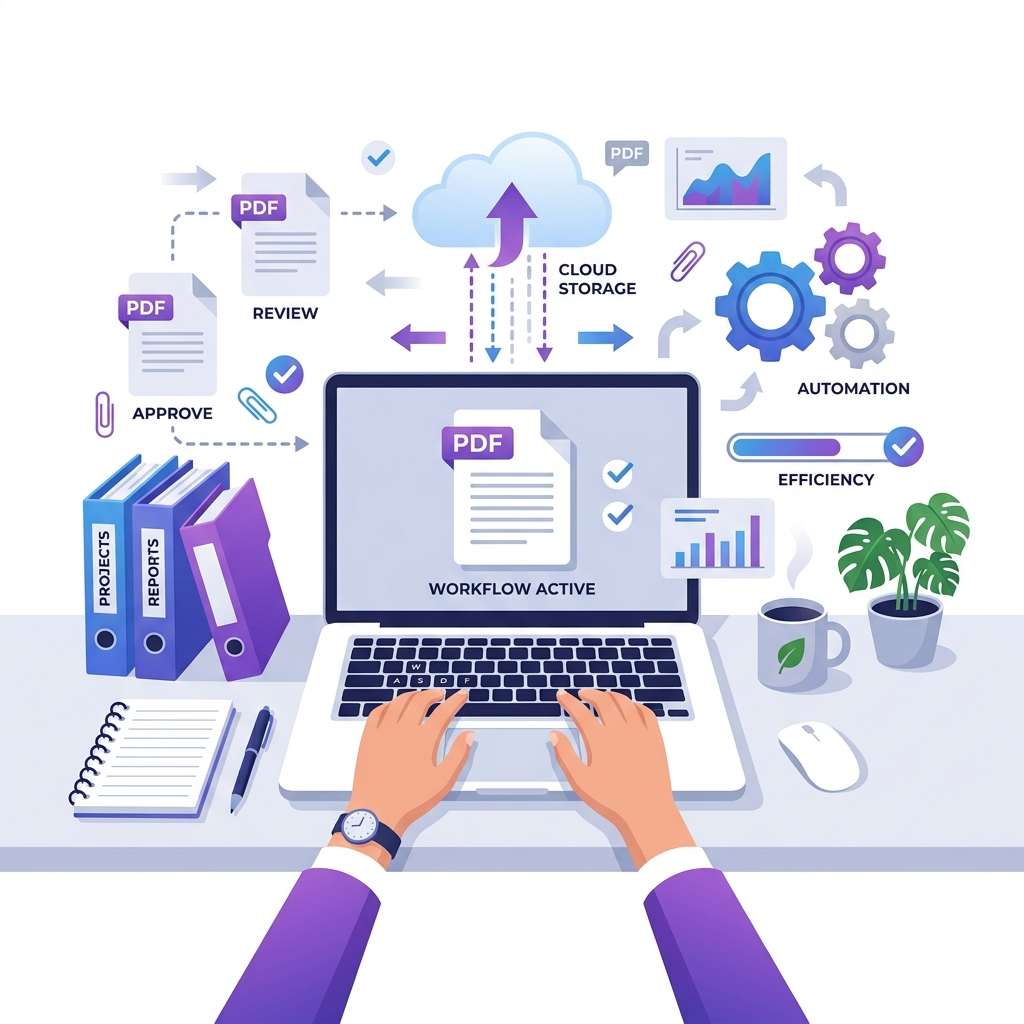
The Hidden Time Sink in Remote Work
Remote workers are often evaluated on output, but a surprising amount of their time disappears into document handling processes that are slower and more manual than they need to be. Downloading a file, processing it, uploading it somewhere else, waiting for a response, and repeating the cycle consumes hours per week without producing anything that feels like real work.
The ten hacks in this guide address the most common PDF workflow inefficiencies in remote work settings. Each includes a realistic estimate of time saved per week based on typical document handling frequency. Implementing even half of them adds up to meaningful time reclaimed.
1. Set Up a One-Click PDF Printer (Save 20 Minutes Per Week)
Creating a PDF from any application typically involves navigating through several menus: File, then Print, then changing the printer to a PDF option, then confirming. For someone who creates 20 to 30 PDFs per week, that six-click sequence adds up to roughly 20 minutes of menu navigation.
On Windows, setting Microsoft Print to PDF as your default printer and using Ctrl+P then Enter as a two-keystroke shortcut brings this down to seconds. On Mac, setting up a keyboard shortcut for the Export as PDF action through System Preferences saves the same amount of time. On any platform, the habit of using keyboard shortcuts rather than menus compounds into meaningful time savings over a week.
2. Connect PDF Tools Directly to Cloud Storage (Save 30 Minutes Per Week)
The most common inefficiency in PDF workflows is the manual download-process-upload cycle. Someone downloads a file from Google Drive, opens an online tool, uploads it, processes it, downloads the result, and then uploads it back to Drive. PDFTools supports direct Google Drive and Dropbox integration, which eliminates the intermediate download and re-upload steps entirely. The compress PDF tool, merge PDF tool, and PDF to Word converter all support direct cloud storage import and export.
3. Extract Only the Pages You Actually Need (Save 25 Minutes Per Week)
Sending a complete 80-page report to a colleague who needs only 5 specific pages wastes their time as much as yours. Extracting the relevant pages and sending only those is more professional, produces a smaller file that does not clog inboxes, and takes less than two minutes.
The PDF splitter handles page extraction in seconds. For remote workers who regularly share sections of larger documents with different stakeholders, this becomes a standard part of the document preparation workflow rather than an occasional task.
4. Use Fillable PDF Templates for Recurring Documents (Save 45 Minutes Per Week)
Any document that follows a consistent structure and gets created repeatedly is a candidate for a fillable PDF template. Project status reports, client invoices, weekly timesheets, meeting agenda templates, and onboarding checklists are all common examples.
A fillable PDF template lets you update variable fields, such as dates, client names, amounts, and project names, without rebuilding the document structure each time. For a freelancer who produces invoices for multiple clients, a good template eliminates 10 to 15 minutes of reformatting per invoice. Over a month with several clients, that adds up to well over an hour saved.
5. Make Scanned PDFs Searchable with OCR (Save 20 Minutes Per Week)
Scanned documents arrive as image-only PDFs where the text cannot be searched, selected, or copied. Finding a specific clause in a 60-page scanned contract requires scrolling manually through every page. OCR converts the scanned images to real text, making the entire document searchable and selectable.
Google Drive can perform OCR automatically when you open a PDF in Google Docs. The PDF to Word converter also extracts text from PDFs during conversion, making content accessible for editing and searching. Once a scanned document has been processed with OCR, finding content that would have taken minutes of scrolling takes seconds with Ctrl+F.
6. Annotate Digitally Instead of Printing (Save 25 Minutes Per Week)
Printing a document to mark it up with a pen, then scanning it and sending it back, is a workflow that was replaced by digital annotation tools years ago. Adobe Acrobat Reader (free), Apple Books, Microsoft Edge, and most modern PDF readers include annotation tools that add comments, highlights, and markup directly to the PDF.
Digital annotations are also searchable, reversible, and can be easily shared. A comment thread in an annotated PDF is more useful than a scan of handwritten margin notes, because the comments can be addressed and resolved without reprinting.
7. Batch Process Multiple PDFs at Once (Save 30 Minutes Per Week)
Compressing, renaming, or converting a set of PDFs one by one takes roughly the same time as doing them in batch, except you have to repeat the process manually for each file. Most professional PDF tools support batch operations that handle many files in a single process.
For remote workers who regularly receive batches of the same document type, such as expense receipts, signed documents, or vendor invoices, setting up a batch compression routine at the start of each week saves the time of handling each file individually throughout the week.
8. Use QR Codes to Share PDFs in Meetings (Save 15 Minutes Per Week)
Distributing documents in remote meetings by pasting a download link into the chat takes time, and links can be missed or hard to click on mobile devices. A QR code displayed on screen during a video call allows everyone to download the document instantly by pointing their phone camera at the screen.
Upload the PDF to Google Drive, generate a QR code pointing to the shareable link using any free QR code generator, and embed it in your presentation slide or share it in the chat. This removes the back-and-forth of ensuring everyone has the latest version of a document.
9. Keep a Compression Step in Your Send Checklist (Save 15 Minutes Per Week)
A significant portion of the time remote workers spend on email is caused by attachment bounce notifications and follow-up emails to re-send files that were too large. Building a quick compression step into the habit before attaching any PDF prevents most of these delays.
The habit takes less than 90 seconds: open the compress tool, upload the file, download the compressed version, attach that. Against the time cost of a bounced email and resending, this routine pays for itself on the first use. For more details on attachment limits, check out our guide on sending large PDFs by email.
10. Automate Recurring PDF Tasks with No-Code Tools (Save 60+ Minutes Per Week)
The most powerful efficiency gain for remote workers who handle significant document volume is automation. Tools like Zapier and Make (formerly Integromat) can trigger PDF operations automatically based on events in other applications.
Practical examples include: when a form submission arrives, automatically compile the data into a formatted PDF report and save it to a designated folder. When a contract is completed in an e-signature tool, automatically compress it and archive it in a project folder. When a receipt arrives by email, automatically extract it as a PDF attachment and add it to an expense tracking folder.
Each of these automations takes 20 to 45 minutes to set up initially but saves several minutes every time it runs. For recurring processes that happen daily or weekly, the investment typically pays back within the first two weeks.
Conclusion
Document handling inefficiency in remote work is largely invisible because it happens in small increments. No single PDF task feels like a major time drain. But the accumulation across a week tells a different story. Implementing the hacks in this guide addresses the most common sources of that accumulation.
Start with the two or three that match your biggest current pain points and build from there. The tools at PDFTools, including the compress PDF tool, split PDF tool, and merge PDF tool, support the cloud storage integration hack directly and are free to use without registration.
Frequently Asked Questions
Which of these hacks gives the best return on setup time?
The cloud storage integration saves time immediately with almost no setup. The fillable template and OCR hacks have a slightly longer setup but produce the largest per-week savings for workers who handle recurring document types. The automation hack has the longest setup time but the highest ceiling for ongoing savings.
Do these hacks work for teams as well as individuals?
Yes. The cloud storage integration and batch processing hacks are especially effective for teams because they create consistent, shared workflows that benefit everyone rather than just the person who sets them up. Shared templates and standard annotation practices save time across a whole team.